

Send Payment Reminders and Cancel Unpaid Shopify Orders via Gmail
Automate unpaid Shopify order recovery. Send staged payment reminders via Gmail, automatically cancel expired orders, restock inventory, and receive daily CSV admin audit reports with n8n.
Download the n8n Workflow
Import the workflow used in this guide.
Why Unpaid Orders & Locked Inventory Hurt Shopify Stores
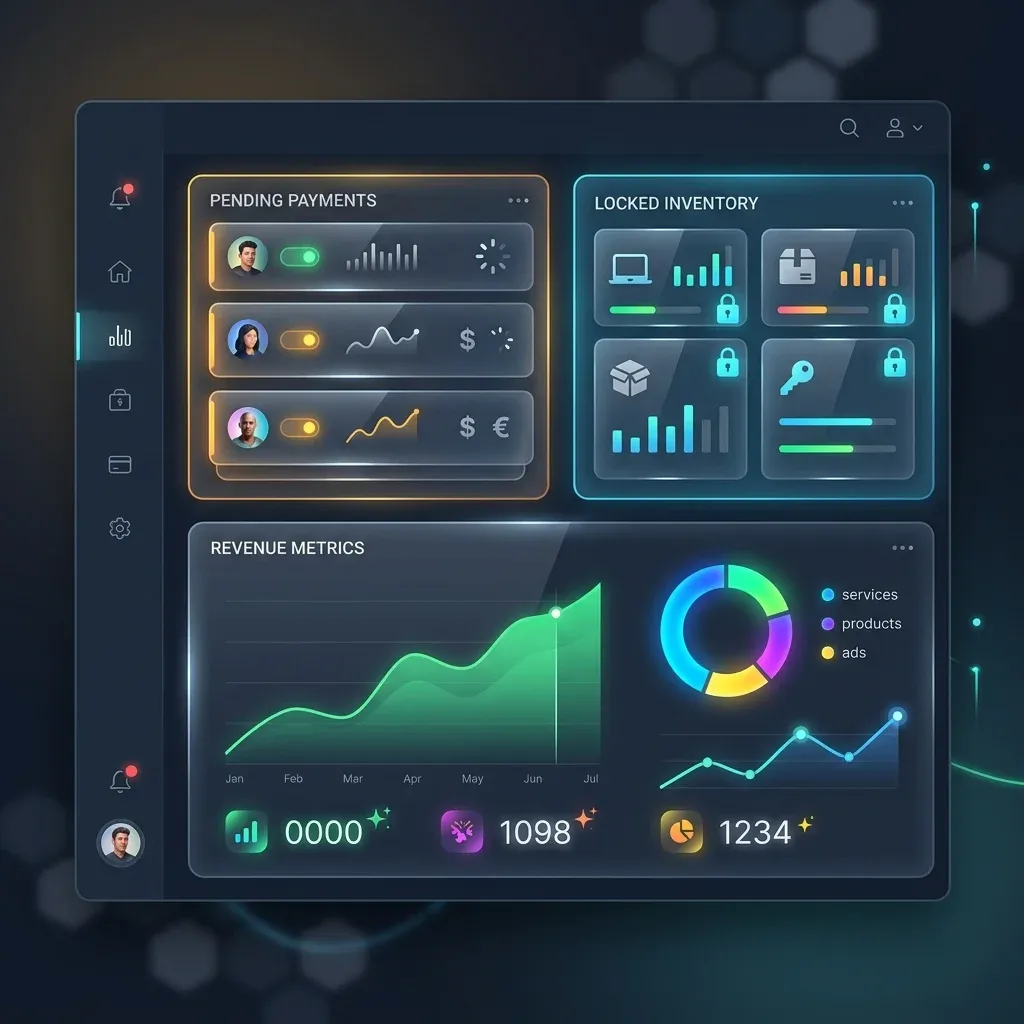
Every Shopify store merchant using offline payment methods—such as Wire Transfers, Bank Deposit, Cash on Delivery (COD), Purchase Orders, or Draft Invoices—encounters the headache of unpaid pending orders. When customers place an order without instant online payment, inventory is immediately reserved.
If those customers delay or abandon payment, your store faces serious operational drawbacks:
- Locked Stock: High-demand items remain tied up in pending orders, preventing active paying customers from buying them.
- Phantom Sales: Revenue figures appear inflated until unpaid orders are manually audited and canceled.
- Manual Follow-Up Fatigue: Support and finance teams waste hours sending manual reminder emails and updating Shopify order tags.
- Inconsistent Inventory Levels: Forgetting to cancel unpaid orders leads to stock discrepancies and missed sales opportunities.
How Automated Payment Reminders & Order Cancellation Solve the Bottleneck
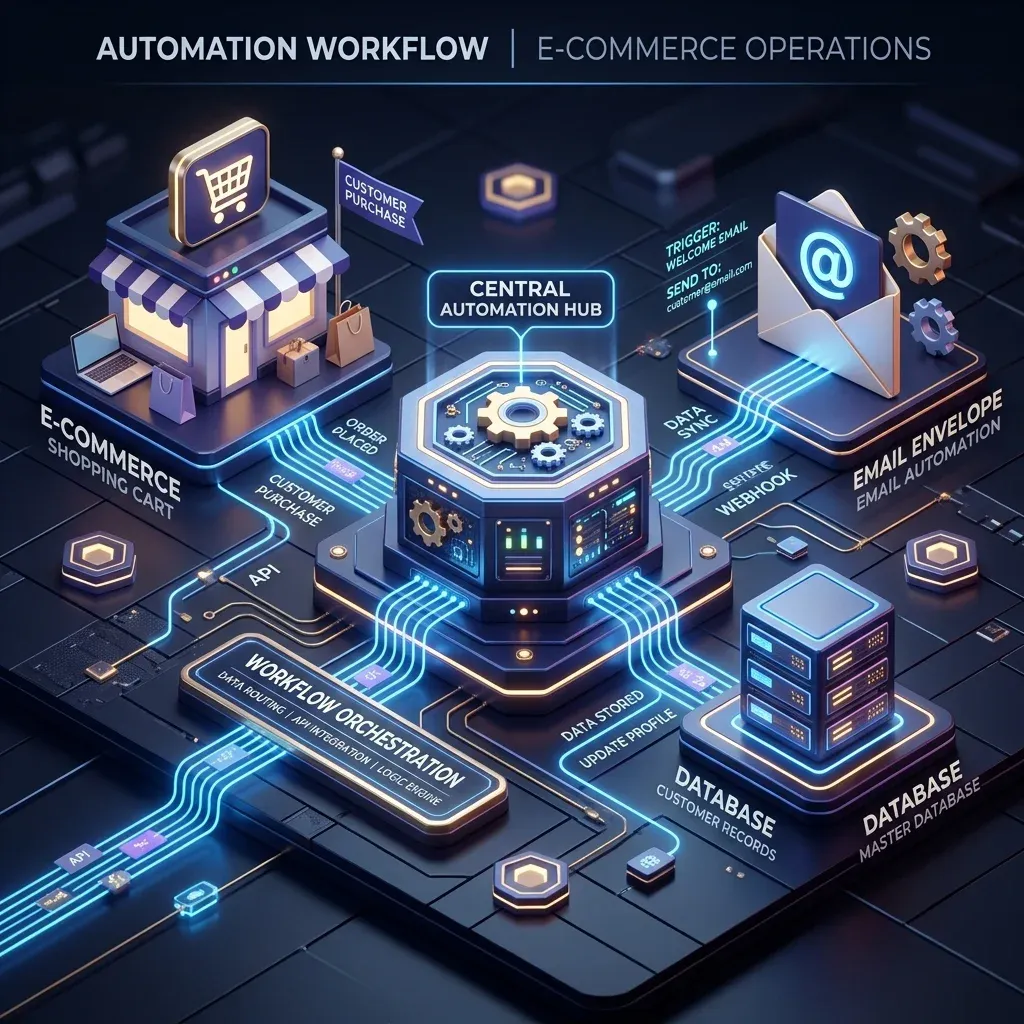
This automated workflow is available as a free template on n8n. 👉 View & Download the Workflow Template on n8n
This n8n workflow automates the entire payment recovery and inventory restocking cycle. Running daily on a schedule, it scans open unpaid orders, delivers a multi-stage sequence of Gmail reminders, automatically cancels orders that exceed your store's deadline, restocks inventory, and emails an admin audit report with a CSV attachment.
How the Automated Workflow Works
Step 1 — Daily Scheduled Execution (8:00 AM)
The workflow triggers automatically every morning at 8:00 AM. It loads configurable store settings including your Shopify domain, reminder day thresholds (e.g., Day 2, Day 5, Day 7), cancellation window (e.g., Day 10), and admin email address.
Step 2 — Fetch Unpaid Orders via Shopify Admin GraphQL API
📖 Shopify Admin GraphQL API Documentation
The workflow queries Shopify’s GraphQL API for open orders with pending payment status created within your lookback period. It filters out invalid records and retains only orders that have a valid customer email address.
Step 3 — Evaluate Order Age & Tag History
For each order, the workflow calculates exact days elapsed since creation and evaluates existing Shopify order tags (e.g., reminder-1-sent, reminder-2-sent, reminder-3-sent) to prevent duplicate messaging.
Step 4 — Route Action: Remind, Cancel, or Skip
Based on the calculated order age and tags:
- Stage 1 Reminder (e.g. Day 2): Sends a polite payment reminder via Gmail with payment instructions and tags the order
reminder-1-sent. - Stage 2 Reminder (e.g. Day 5): Sends a follow-up warning email and tags the order
reminder-2-sent. - Stage 3 Final Warning (e.g. Day 7): Sends a final payment request before cancellation and tags the order
reminder-3-sent. - Order Cancellation (e.g. Day 10+): Cancels the order in Shopify via GraphQL with restock: true, sends a cancellation notice to the customer, and tags the order
order-canceled-unpaid.
Step 5 — Automatic Inventory Restocking
When an unpaid order reaches the cancellation threshold, Shopify's GraphQL API executes a cancellation with restocking enabled. Reserved stock is immediately returned to your active inventory, making it available for paying customers without human intervention.
Step 6 — Daily Admin CSV Audit Report via Gmail
At the end of each run, the workflow compiles a detailed CSV report containing order IDs, customer names, email addresses, order age, action taken, and order total. The report and summary statistics are automatically emailed to your store admin via Gmail.
Step-by-Step Implementation Guide
Step 1: Setup Shopify Admin API Credentials
- In your Shopify Admin, create a Custom App or Private Access Token with
read_orders,write_orders, andwrite_merchant_managed_fulfillmentpermissions. - In n8n, create a Header Auth credential named
Shopify Token. - Set your
shopifyDomain(e.g.,your-store.myshopify.com) in the workflow configuration node.
Step 2: Connect Gmail OAuth2 Credentials
📖 Gmail API OAuth2 Setup Documentation
- In Google Cloud Console, enable the Gmail API and configure OAuth2 consent.
- In n8n, create a
Gmail OAuth2credential. - Test email sending by triggering a test execution.
Step 3: Configure Thresholds & Store Policies
In the workflow configuration node, customize the following variables:
reminder1Days: Days after order creation for initial reminder (default: 2 days).reminder2Days: Days for second reminder (default: 5 days).reminder3Days: Days for final notice (default: 7 days).cancelDays: Days after order creation to execute cancellation (default: 10 days).adminEmail: Recipient email address for daily CSV audit reports.
Comparison: Manual Follow-Ups vs. Automated n8n Workflow
| Feature | Manual Follow-Up Process | Automated n8n Workflow |
|---|---|---|
| Execution Frequency | Ad-hoc / When team has time | Automated daily schedule (8:00 AM) |
| Reminder Accuracy | Inconsistent, easy to miss orders | 100% accurate multi-stage reminder flow |
| Duplicate Protection | Manual checking of email threads | Shopify order tags track sent reminders |
| Order Cancellation | Requires manual order search in Shopify | Automatic cancellation upon deadline |
| Inventory Restocking | Risk of forgetting to restock items | Instant GraphQL restock on cancellation |
| Admin Reporting | No structured tracking | Daily CSV audit report attached via Gmail |
Real-World Use Cases
Use Case 1: Bank Transfer & Wire Payment Stores
Stores accepting bank deposits often wait days for payments. Automated reminders guide customers through deposit instructions, while hard deadlines prevent inventory from being locked indefinitely.
Use Case 2: B2B & Wholesale Draft Invoices
Wholesale merchants sending draft orders to business clients can automate payment term follow-ups (Net 7 / Net 30) with professional staged reminders.
Use Case 3: High-Demand Limited Releases
For limited-edition product drops, holding unpaid inventory for weeks causes lost revenue. Setting aggressive cancellation thresholds (e.g. 48 hours) returns reserved stock to eager buyers immediately.
Troubleshooting & Best Practices
- Email Bouncing: Ensure your Gmail account has sufficient sending quota and proper SPF/DKIM records set up.
- Tag Collision: Do not manually remove
reminder-X-senttags from open orders unless you want the workflow to resend that specific reminder. - GraphQL Rate Limits: Keep
fetchLimitat 100 per execution to stay well within Shopify API cost limits.
Conclusion
Managing unpaid Shopify orders manually wastes valuable support time and locks up inventory that could be sold to active buyers. By implementing this automated n8n workflow, your store gains consistent payment recovery reminders, automated order cancellations with inventory restocking, and full daily admin audit visibility.
Ready to streamline your unpaid order workflow? Download the Free n8n Workflow Template Today
soRelated Posts
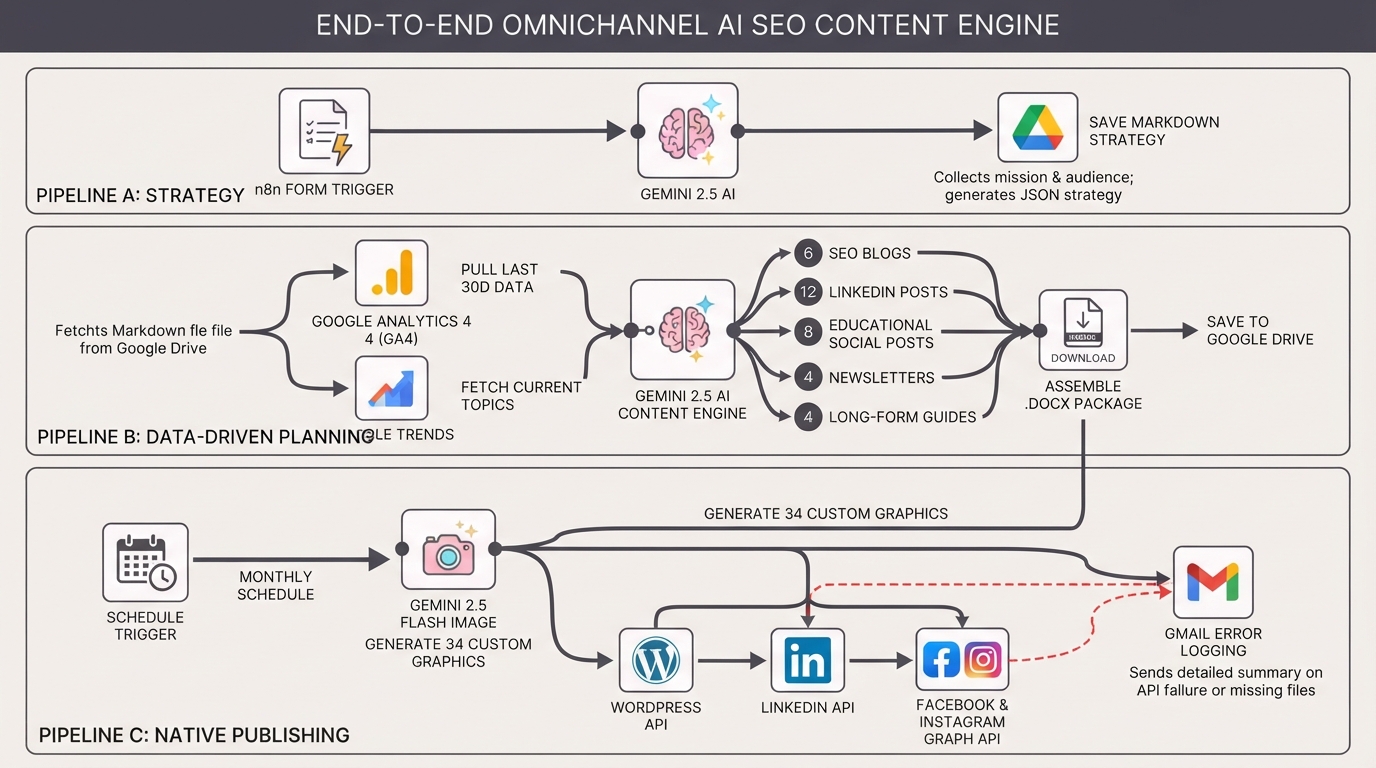
Generate monthly AI SEO content with Gemini for WordPress, LinkedIn and socials
An end-to-end AI content engine. Automate your strategy, generate 34 SEO assets and images with Gemini, and schedule them to WordPress, LinkedIn, Facebook, and Instagram natively using n8n.
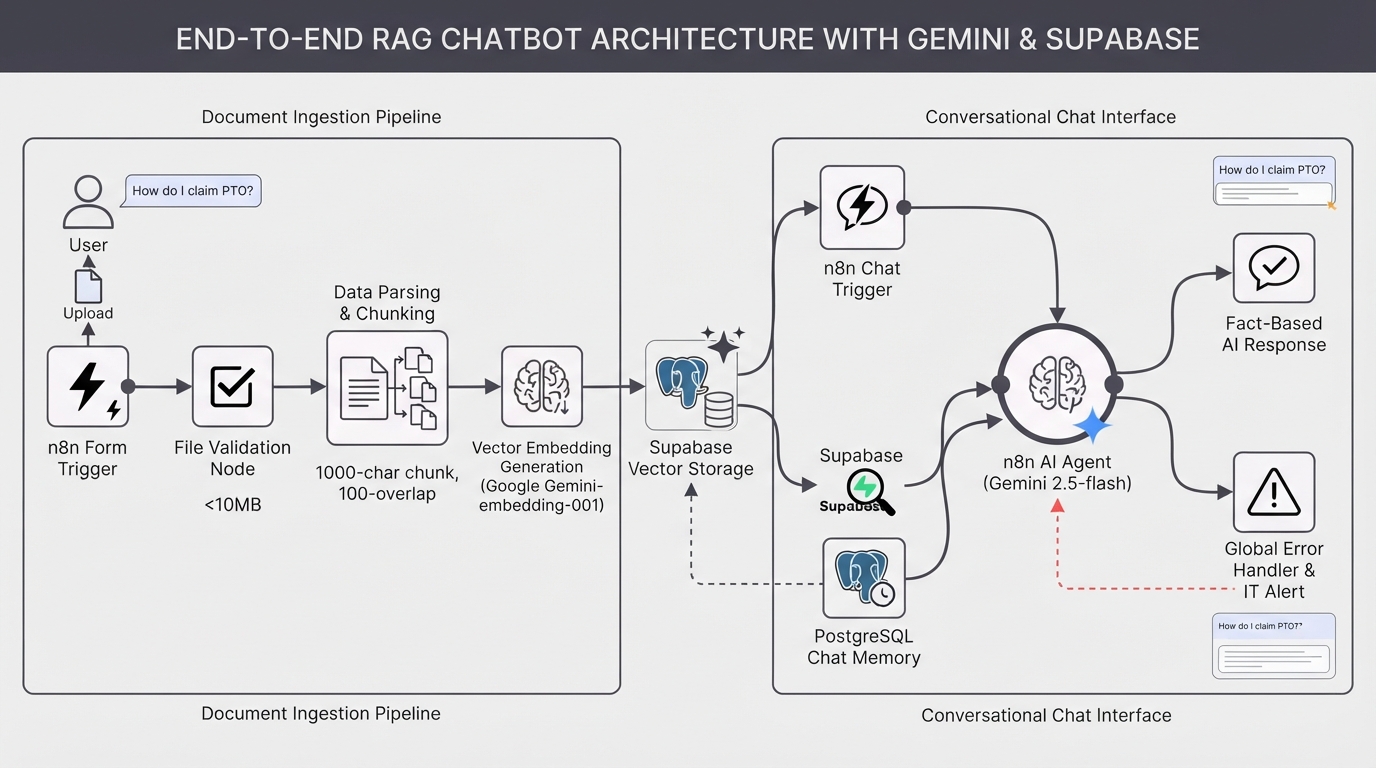
Build a RAG chatbot using Google Gemini and a Supabase vector store
Build a custom AI knowledge base in minutes. This complete RAG system uses Google Gemini and Supabase to ingest documents and provide accurate, context-aware chatbot answers.
Monitor Shopify orders and send no-order alerts via Slack and email
Never miss a revenue-impacting failure. This n8n workflow monitors your Shopify store and triggers an alert if X minutes pass without a single new order.
Score Shopify Customer Churn Risk and Sync Results to Klaviyo, Slack, and Gmail
Calculate Shopify customer churn risk dynamically based on reorder intervals. Automatically sync risk scores to Klaviyo and send alerts to Slack and Gmail with this free n8n workflow.