
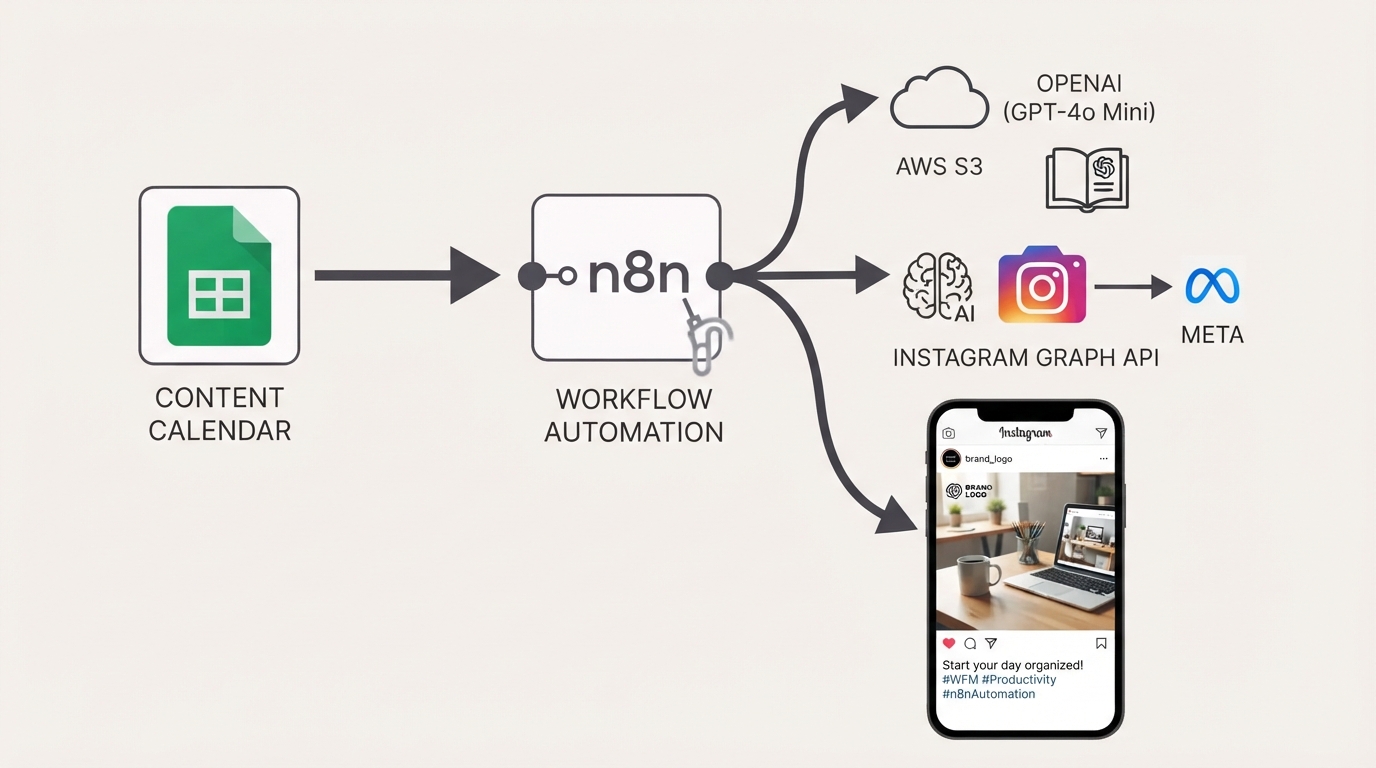
Publish Brand-Compliant Instagram Posts with OpenAI, Google Sheets, and S3
Automatically generate on-brand Instagram captions and images with OpenAI, watermark them with your logo, publish via the Facebook Graph API, and track results in Google Sheets using this free n8n workflow.
Download the n8n Workflow
Import the complete Instagram publishing workflow with AI-generated captions, branded images, and automated scheduling.
Why Manual Instagram Content Creation Doesn't Scale
Keeping an Instagram content calendar consistently on-brand and on-schedule is one of the most time-consuming parts of running social media for a business. Writing captions, briefing designers, applying brand watermarks, and manually publishing posts every day quickly becomes difficult as your content volume grows.
Common marketing challenges include:
- Captions drifting off-brand without proper review
- Manually scheduling posts every day
- Inconsistent logo watermark placement
- No centralized publishing history
- Google Sheets disconnected from actual publishing
- No visibility into failed Instagram posts
Instead of managing every step manually, you can automate your entire Instagram publishing pipeline with n8n.
How This Workflow Solves the Problem
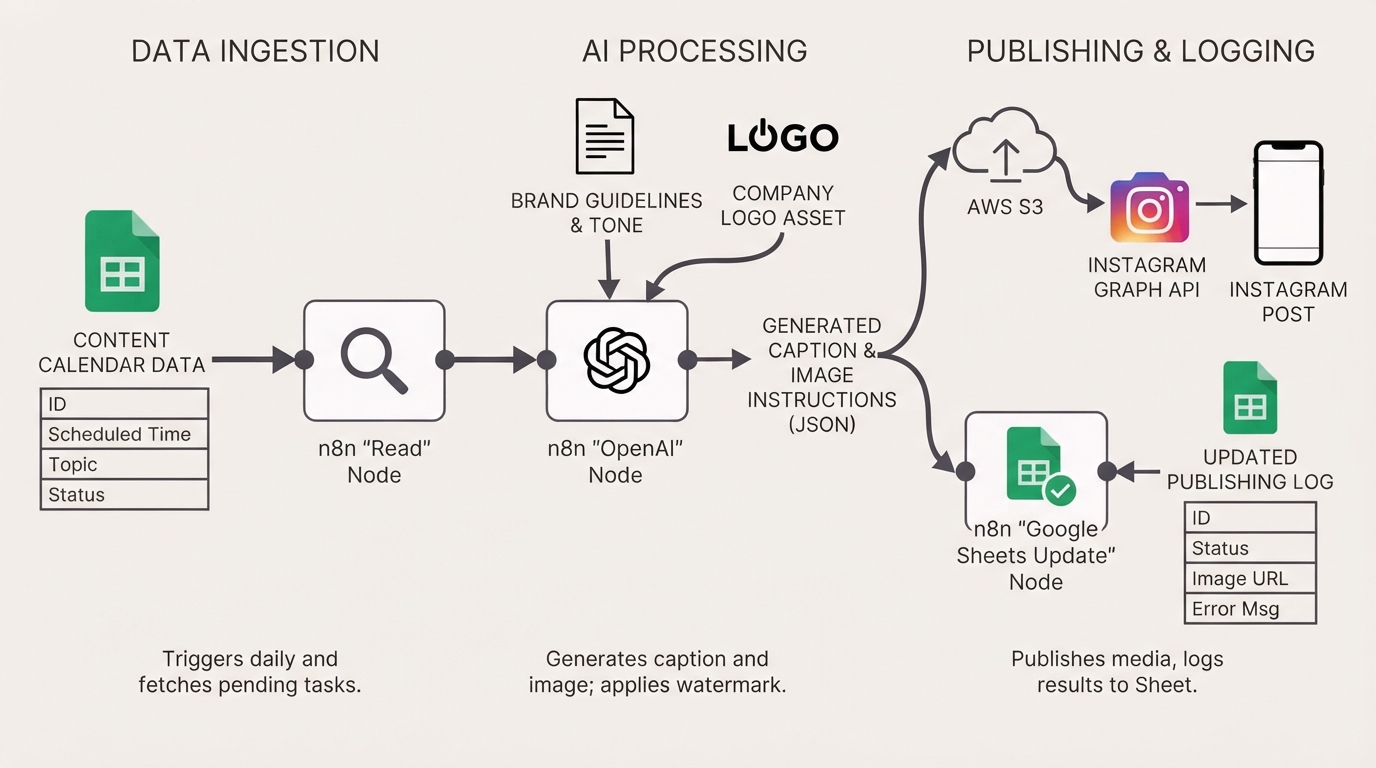
This workflow automatically reads your Google Sheets content calendar every day, generates AI-powered captions and branded images using OpenAI, applies your company logo as a watermark, uploads images to Amazon S3, publishes directly to Instagram via the Facebook Graph API, and logs every result back into Google Sheets.
How the Automated Workflow Works
Step 1 — Daily Schedule Trigger
The workflow automatically starts every day using the Schedule Trigger and loads your workflow configuration including Google Sheets, OpenAI, S3, logo URL, and Instagram Business Account settings.
Step 2 — Load Brand Assets
Your brand guidelines and logo are downloaded and prepared for AI image generation and watermark placement.
Step 3 — Read Today's Content Calendar
Google Sheets is checked for all posts scheduled for today with a Pending status. If nothing is scheduled, the workflow ends automatically.
Step 4 — Wait Until Publish Time
Posts are sorted by their scheduled publish time. Each post waits until its exact publishing time before continuing.
Step 5 — Generate Caption with OpenAI
GPT-4o Mini generates a brand-compliant Instagram caption together with layout instructions in structured JSON.
Step 6 — Generate AI Image & Watermark
OpenAI Image Generation creates a branded Instagram image. The workflow automatically applies your company logo as a watermark in the correct location.
Step 7 — Upload & Publish
The finished image is uploaded to Amazon S3 and published automatically to Instagram using the Facebook Graph API.
Step 8 — Update Google Sheets
The workflow updates your spreadsheet with publish status, caption, image URL, timestamp, and any error messages.
Need Help Implementing This Workflow?
Our automation experts can customize this Instagram publishing workflow specifically for your brand and marketing team.
We can help with:
- ✅ n8n Workflow Development
- ✅ OpenAI Integration
- ✅ Instagram Graph API Integration
- ✅ Google Sheets Automation
- ✅ Amazon S3 Configuration
- ✅ AI Prompt Engineering
- ✅ Social Media Automation
- ✅ Ongoing Workflow Support
Explore Our n8n Automation Services →
Step-by-Step Setup Guide
Step 1 — Connect Google Sheets
Connect your Google Sheets OAuth2 credentials and verify that n8n can access your content calendar.
Step 2 — Connect OpenAI
Add your OpenAI API credentials so captions and images can be generated automatically.
Step 3 — Configure Amazon S3
Create an S3 bucket with public image access so Instagram can retrieve uploaded media.
Step 4 — Connect Instagram
Configure Facebook Graph API credentials and connect your Instagram Business Account.
Step 5 — Update Workflow Settings
Configure your logo URL, Google Sheet URL, brand context URL, S3 bucket name, and Instagram Business ID before activating the workflow.
System Requirements & Features
Workflow Features
- Daily scheduled publishing
- AI-generated captions
- AI-generated branded images
- Automatic logo watermarking
- Amazon S3 image hosting
- Instagram Business publishing
- Google Sheets logging
- Automatic error reporting
Requirements
| Tool | Requirements |
|---|---|
| Google Sheets | OAuth2 Credentials |
| OpenAI | API Key (GPT-4o Mini & Image Generation) |
| Amazon S3 | IAM Credentials & Public Bucket |
| Instagram Business Account connected to Facebook | |
| n8n | Latest Version |
Customization Options
- Multiple Brands: Run separate Google Sheets for different businesses.
- Different Watermarks: Apply unique logos based on content categories.
- Multiple Instagram Accounts: Publish automatically to different business accounts.
- Approval Workflow: Add a manager approval step before publishing.
- Additional Social Networks: Extend the workflow to Facebook, LinkedIn, or X.
Real-World Use Cases
- Marketing Agencies: Manage content calendars for multiple clients.
- E-commerce Stores: Automatically publish daily product promotions.
- Small Businesses: Maintain a consistent social media presence with minimal effort.
- Personal Brands: Schedule educational or promotional content weeks in advance.
Best Practices
- Maintain an up-to-date brand context document.
- Review AI-generated captions periodically.
- Use high-quality logos for watermarking.
- Monitor Graph API permissions regularly.
- Keep your Google Sheet organized and consistent.
Conclusion
Creating high-quality Instagram content manually every day is difficult to scale. This n8n workflow automates content generation, branding, scheduling, publishing, and tracking, allowing marketing teams to maintain a consistent social presence while saving hours of repetitive work.
Ready to automate your Instagram publishing? 👉 Download the Free n8n Workflow Template Today
Related Posts
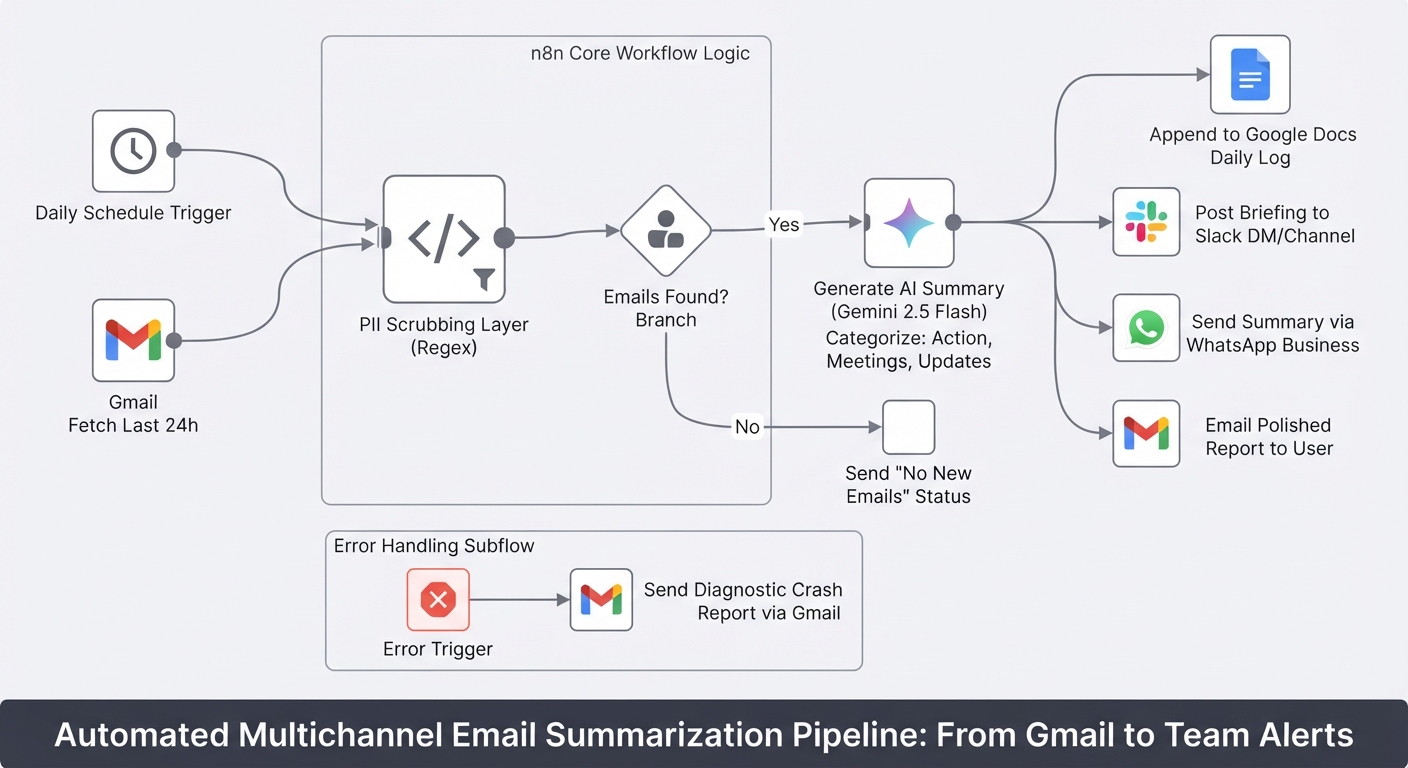
Summarize daily Gmail emails with Gemini and send to Slack, WhatsApp and Docs
Stop starting your day by drowning in unread emails. This workflow turns your Gmail inbox into a prioritized briefing delivered to Slack, WhatsApp, and Google Docs.

Send Payment Reminders and Cancel Unpaid Shopify Orders via Gmail
Automate unpaid Shopify order recovery. Send staged payment reminders via Gmail, automatically cancel expired orders, restock inventory, and receive daily CSV admin audit reports with n8n.
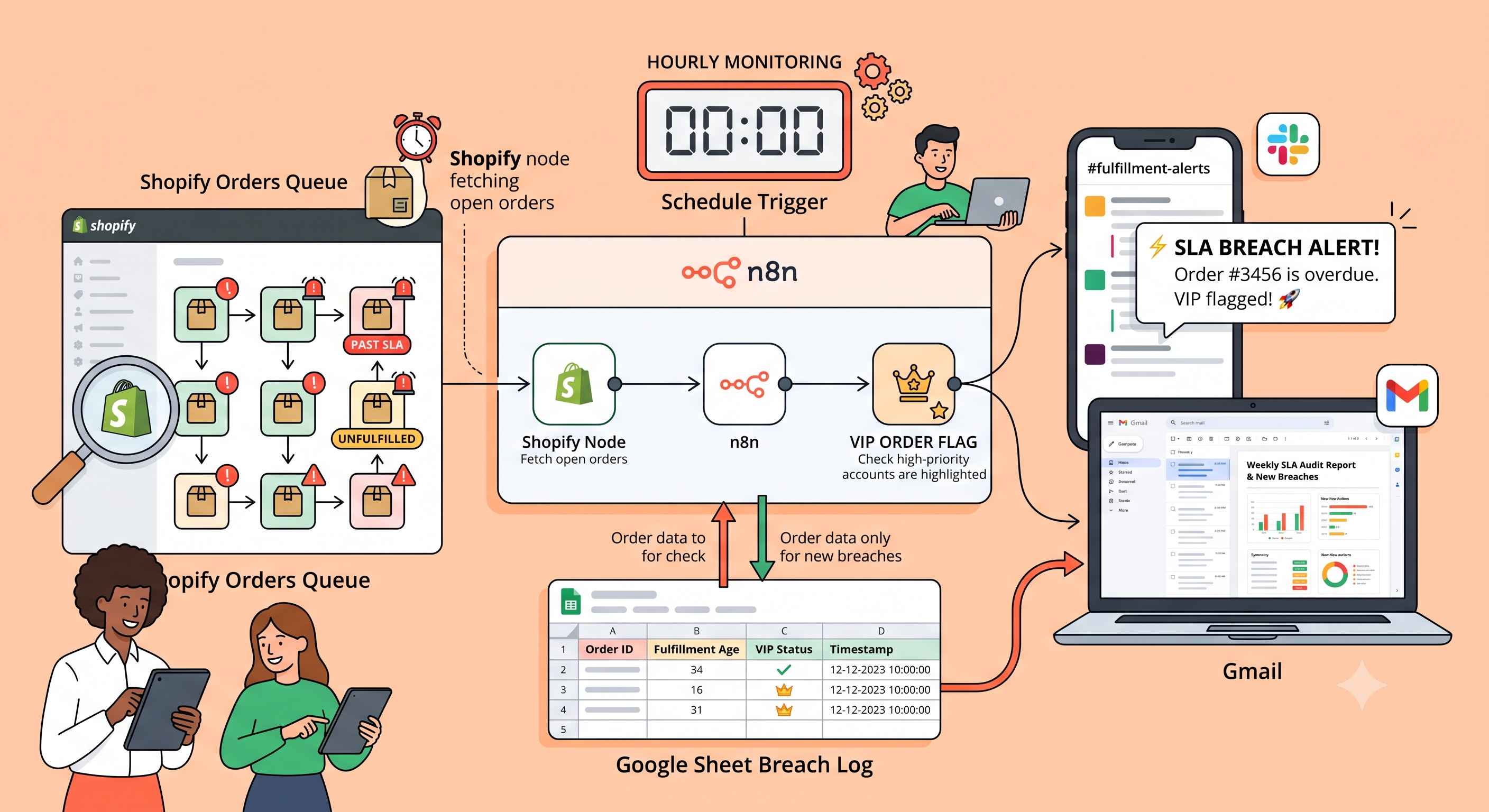
Monitor Shopify Dispatch SLA Breaches with Google Sheets, Slack, and Gmail
Automatically monitor Shopify orders for dispatch SLA breaches every hour, flag VIP orders, and send instant Slack and Gmail alerts with deduplication via Google Sheets using this free n8n workflow.
Summarize daily Shopify orders with Gemini, Google Sheets, Gmail and Slack
E-commerce store management made easy. The workflow pulls your daily Shopify orders, calculates metrics, logs them to Google Sheets, and uses Gemini AI to send a polished summary to your team via Slack and email.