
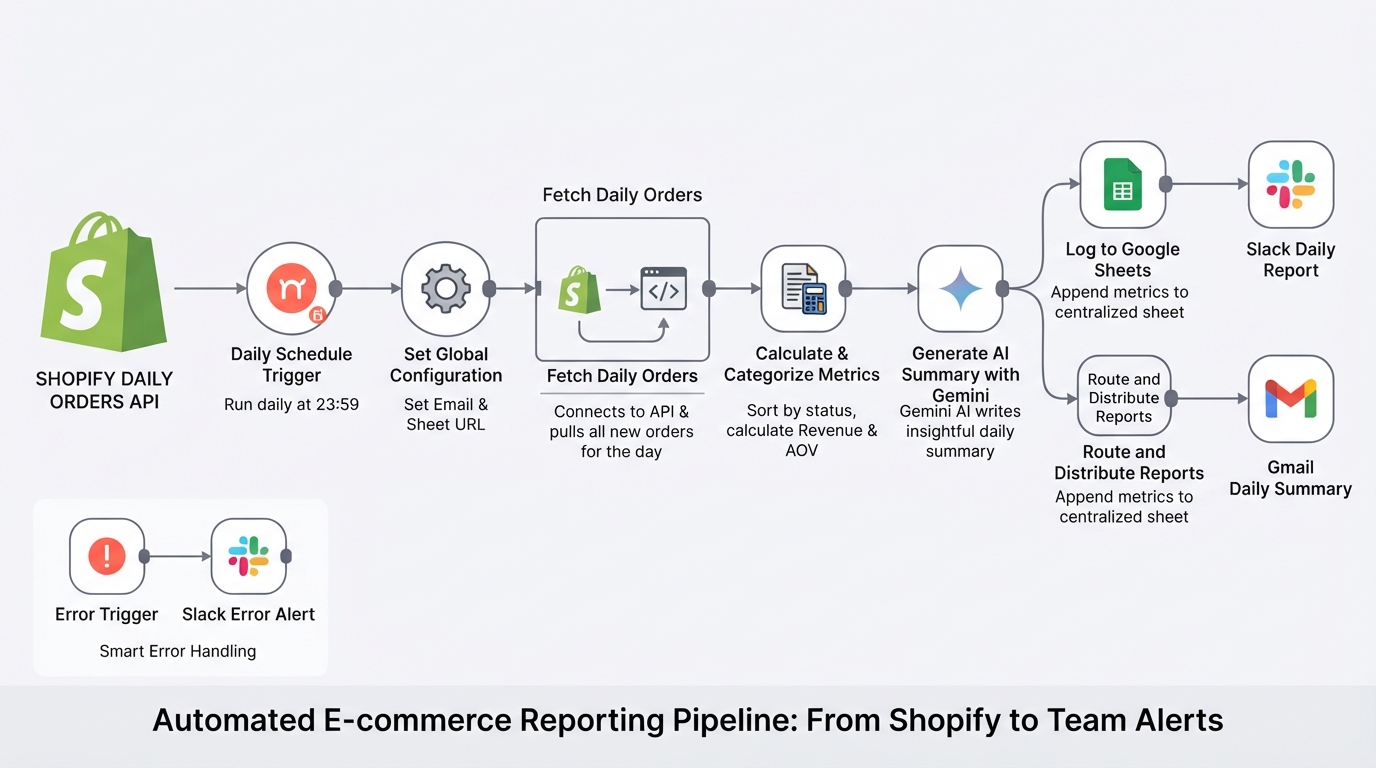
Summarize daily Shopify orders with Gemini, Google Sheets, Gmail and Slack
E-commerce store management made easy. The workflow pulls your daily Shopify orders, calculates metrics, logs them to Google Sheets, and uses Gemini AI to send a polished summary to your team via Slack and email.
Download the n8n Workflow
Import the complete daily Shopify order reporting workflow with Gemini AI summaries, Google Sheets logging, and multichannel alerts.
Why Manual E-commerce Reporting Doesn't Scale
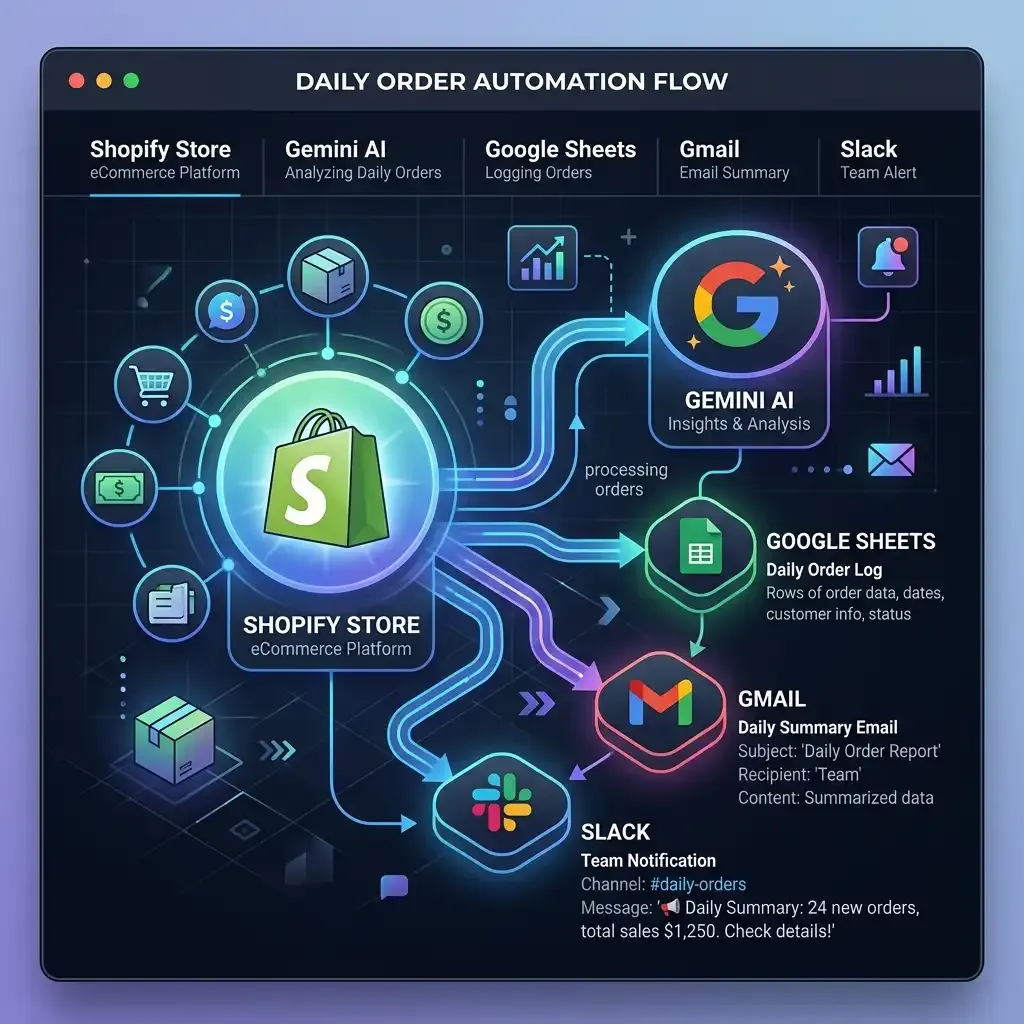
Keeping track of daily e-commerce performance is critical, but manually pulling data from Shopify every day is a tedious process. Exporting spreadsheets, calculating fulfillment rates, identifying revenue trends, and formatting reports for your team quickly becomes a massive time sink for store owners and managers.
Common reporting challenges include:
- Wasting time manually calculating daily revenue and average order value
- Inconsistent reporting formats across the team
- Missing important trends buried in raw Shopify data
- Failing to track fulfillment and cancellation rates properly
- No centralized, long-term tracking disconnected from the Shopify dashboard
Instead of managing this reporting manually, you can automate your entire daily summary pipeline with n8n and Gemini AI.
How This Workflow Solves the Problem
This workflow automatically reads your Shopify store orders at the end of each day, calculates essential metrics (revenue, total orders, average order value, fulfillment percentage), and uses Gemini AI to transform this raw data into a polished, insightful daily summary. It logs everything cleanly into Google Sheets and delivers the final report directly to your team via Slack and Gmail.
How the Automated Workflow Works
Step 1 — Daily Schedule Trigger
The workflow automatically runs on a schedule (e.g., every day at 23:59) and initiates the data pulling process for that specific day's orders.
Step 2 — Set Global Configuration
The workflow defines your key variables, such as the recipient email address for reports and the URL for your tracking Google Sheet.
Step 3 — Fetch Daily Orders
Connects to the Shopify API and securely pulls all new orders that occurred during the current day.
Step 4 — Calculate & Categorize Metrics
Custom JavaScript processes the raw data, sorting orders by status (shipped, refunded, cancelled, pending) and calculating revenue and average order value.
Step 5 — Generate AI Summary with Gemini
Google's Gemini AI reads the processed metrics and writes a highly readable, engaging daily summary that formats perfectly for both Slack and email.
Step 6 — Log to Google Sheets
The calculated metrics (Total Orders, Revenue, Fulfillment %, etc.) are automatically appended as a new row in your centralized Google Sheet.
Step 7 — Route and Distribute Reports
The final AI summary is simultaneously sent as a formatted HTML email via Gmail and posted as a structured message to your team's Slack channel.
Step 8 — Smart Error & Zero-Order Handling
If there are no orders for the day, Slack gets a quick "no updates" ping. If any step in the workflow fails (like a Shopify API timeout), an error alert is sent to a dedicated Slack channel.
Need Help Implementing This Workflow?
Our automation experts can customize this Shopify reporting workflow specifically for your store, tailoring the AI summaries and metrics to match your business goals.
We can help with:
- ✅ n8n Workflow Development
- ✅ Shopify API Integration
- ✅ Gemini AI Prompt Engineering
- ✅ Google Sheets Automation
- ✅ Custom Financial Reporting
- ✅ Multi-channel Alerts (Slack, Gmail)
- ✅ Ongoing Workflow Support
Explore Our n8n Automation Services →
Step-by-Step Setup Guide
Step 1 — Authenticate All Credentials
Connect your Shopify API (requires store admin URL and token), Google Sheets, Gmail, Slack API, and Google Gemini API within the n8n nodes.
Step 2 — Configure Workflow Variables
Open the "Set Config (Email & Sheet URL)" node and fill in your target recipient email and the URL of the Google Sheet you will use.
Step 3 — Create Your Google Sheet
Create a blank Google Sheet and add the exact case-sensitive headers in Row 1: Date | Total Orders | New Orders | Shipped | Refunded | Cancelled | Revenue | Avg Value | Fulfillment % | Timestamp.
Step 4 — Select Slack Channels
Open the respective Slack nodes and select the channels for your daily reports, zero-order alerts, and error alerts.
Step 5 — Set Workflow Timezone
Go to your n8n Workflow Settings and set the timezone perfectly matching your Shopify store timezone to ensure orders are correctly categorized by day.
System Requirements & Features
Workflow Features
- Automated revenue and fulfillment calculations
- AI-Powered daily summaries via Gemini
- Multichannel delivery (Slack & Email)
- Centralized Google Sheets logging
- Safety net alerts and error handling
Requirements
| Tool | Requirements |
|---|---|
| Shopify | API access (orders:read permissions) |
| Gemini AI | Google Cloud API Key |
| Google Sheets | OAuth2 Credentials |
| Gmail | OAuth2 Credentials |
| Slack | OAuth2 Credentials (chat:write) |
| n8n | Latest Version |
Customization Options
- Filter by Status: Edit the code node to only include orders where financial_status = "paid" and skip pending orders.
- Adjust AI Tone: Open the Gemini node and prompt it to write like a strict financial auditor or use fun emojis.
- Team Distribution: Add multiple email addresses or use a distribution list in the Gmail node.
- Add More Metrics: Update the code node and Google Sheet to track discount usage or shipping costs.
Real-World Use Cases
- Store Owners: Get a hands-off, easy-to-read daily brief on how the store performed without logging into Shopify.
- Fulfillment Teams: Monitor daily shipping rates and identify backlog trends automatically.
- Marketing Managers: Track daily revenue against ad spend by integrating additional marketing data.
- Agencies: Provide automated, white-labeled daily performance summaries to e-commerce clients.
Best Practices
- Ensure your n8n timezone matches your Shopify store exactly to prevent data skewing.
- Run a manual test using the "Test Workflow" button to verify your Google Sheet headers are correct.
- Use a dedicated Slack channel for error alerts to separate them from daily reporting.
- Review the Gemini AI summaries periodically to ensure the tone remains on-brand.
Conclusion
Manually compiling daily e-commerce reports is inefficient and prone to errors. This n8n workflow leverages Gemini AI and robust automation to calculate your metrics, write insightful summaries, log data, and keep your team informed effortlessly.
Ready to automate your Shopify reporting? 👉 Download the Free n8n Workflow Template Today
Related Posts
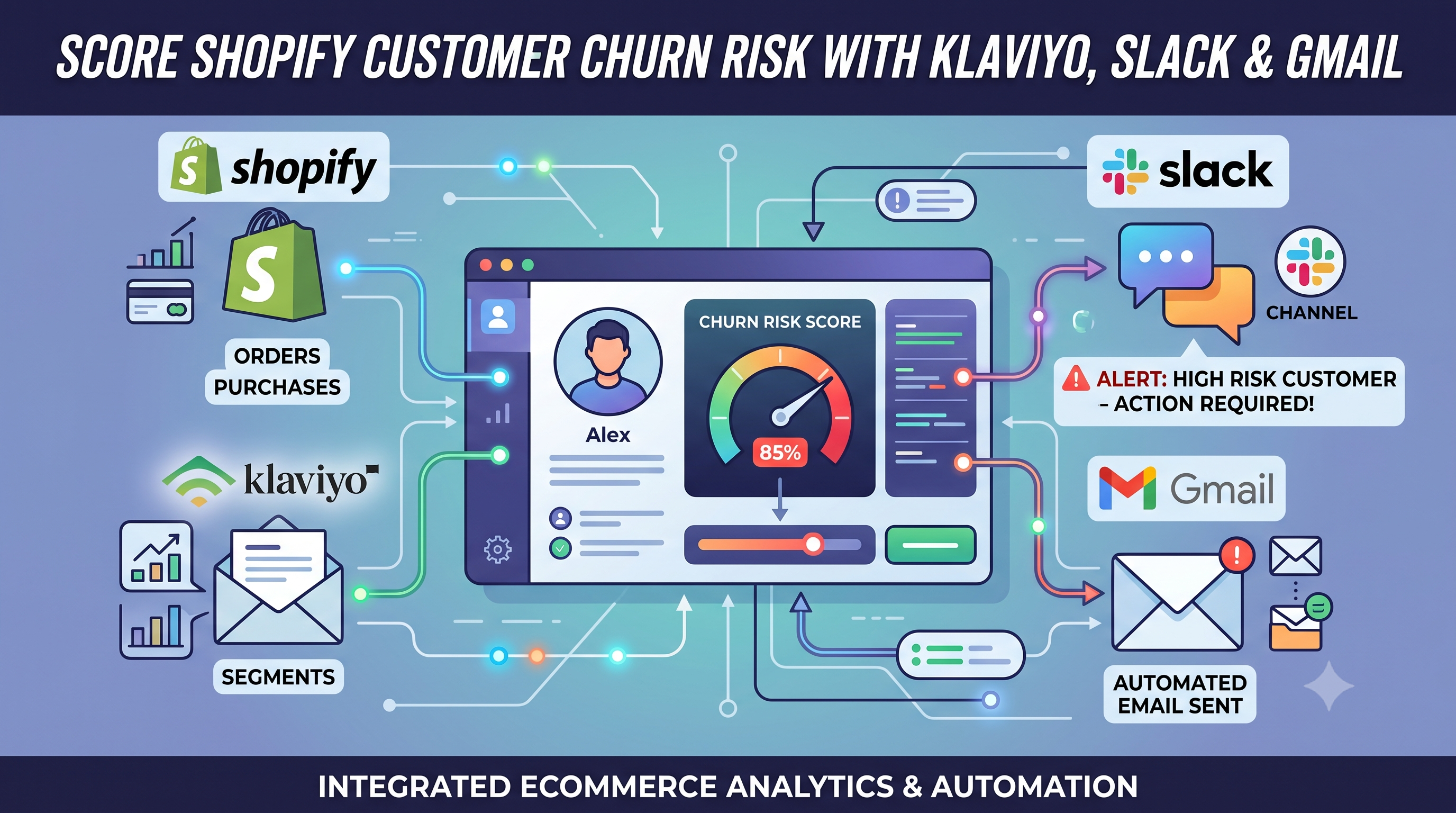
Score Shopify Customer Churn Risk and Sync Results to Klaviyo, Slack, and Gmail
Calculate Shopify customer churn risk dynamically based on reorder intervals. Automatically sync risk scores to Klaviyo and send alerts to Slack and Gmail with this free n8n workflow.
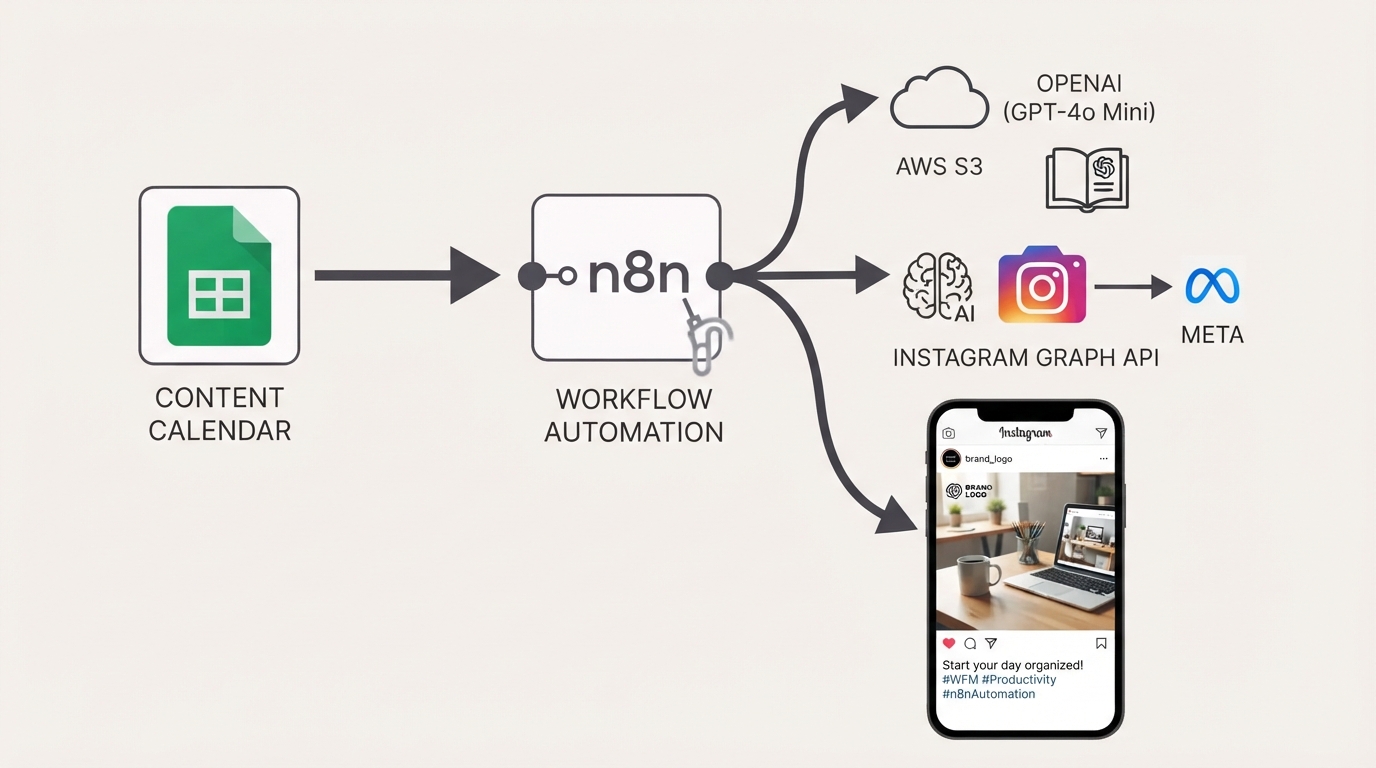
Publish Brand-Compliant Instagram Posts with OpenAI, Google Sheets, and S3
Automatically generate on-brand Instagram captions and images with OpenAI, watermark them with your logo, publish via the Facebook Graph API, and track results in Google Sheets using this free n8n workflow.
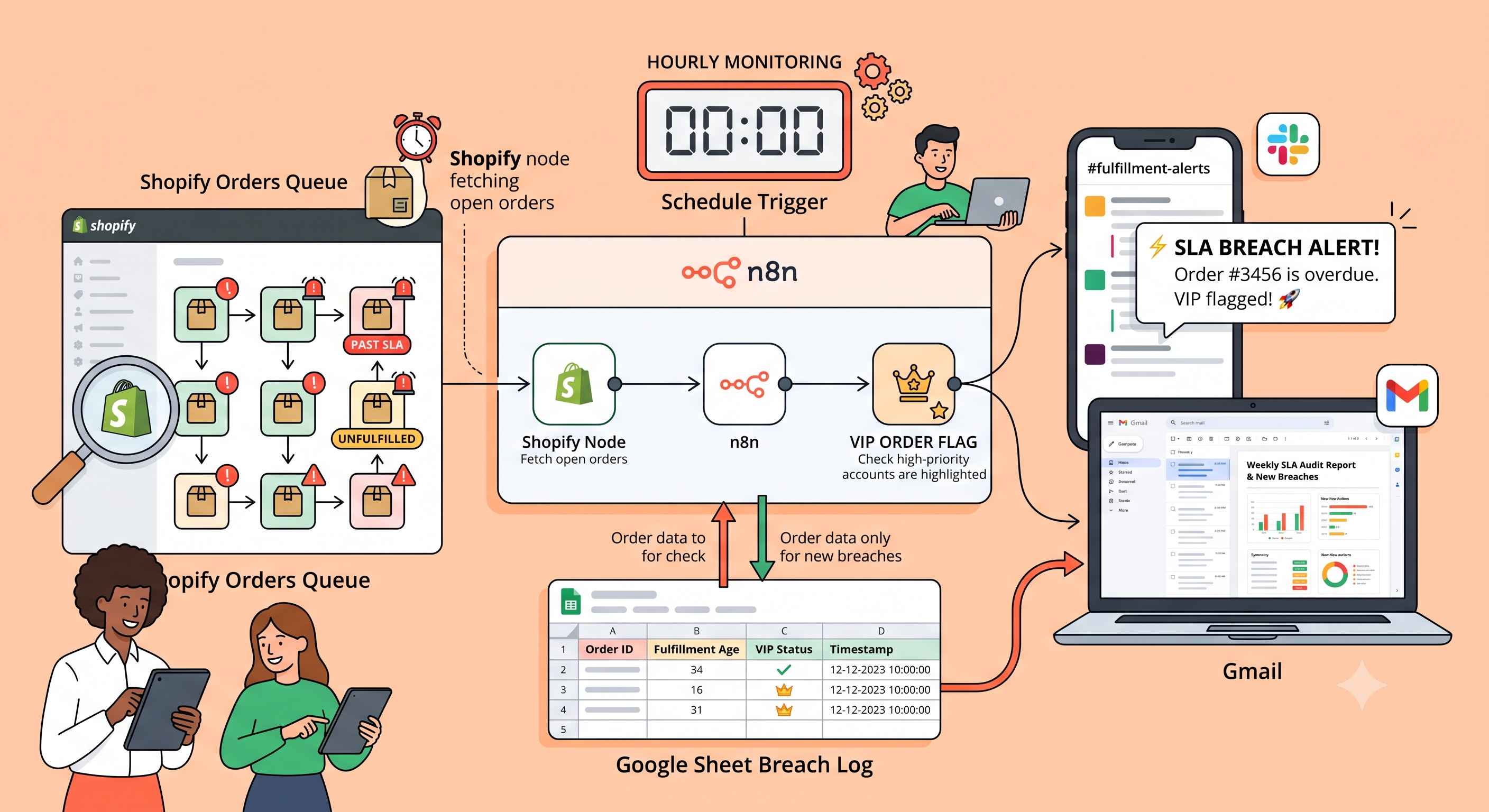
Monitor Shopify Dispatch SLA Breaches with Google Sheets, Slack, and Gmail
Automatically monitor Shopify orders for dispatch SLA breaches every hour, flag VIP orders, and send instant Slack and Gmail alerts with deduplication via Google Sheets using this free n8n workflow.
An Ultimate Guide to Shopify POS
Selling in person is one of the most powerful ways to build real customer relationships. Shopify POS (Point of Sale) bridges the gap between your online store and physical retail, allowing you to manage everything—from inventory to payments—in one unified system.