

Automating Google Sheets to GeoDirectory with n8n
Managing a WordPress business directory often involves repetitive data entry. Company information is collected in a spreadsheet, reviewed, and then manually copied into individual listings.
Managing a WordPress business directory often involves repetitive data entry. Company information is collected in a spreadsheet, reviewed, and then manually copied into individual listings.
That process takes time and creates opportunities for missing fields, inconsistent formatting and duplicate entries.
A workflow connecting Google Sheets, n8n and GeoDirectory can reduce this manual work while keeping people in control of content quality and publication.
We recently developed a workflow for this purpose: taking prepared company records from a spreadsheet and creating draft GeoDirectory listings for review.
Why Automate Directory Imports?
Google Sheets is a convenient workspace for collecting and organising company information. Teams can collaborate on descriptions, contact details, categories and research notes in one place.
The repetitive work begins when those records need to be entered into WordPress.
An automated import workflow can help by:
- Reducing repeated copy-and-paste work.
- Applying consistent field mappings.
- Checking records against required data rules.
- Recording import results in the source sheet.
- Preparing drafts for human review.
The aim is not to publish as many listings as possible without supervision. It is to make the preparation process more efficient and easier to track.
How the Workflow Works
The overall process is straightforward:
Google Sheets → Validation → Duplicate checks → GeoDirectory draft → Sheet update
1. Prepare the Source Sheet
The workflow starts with a structured spreadsheet containing the company information.
Depending on the directory’s configuration, this can include:
| Information | Example fields |
|---|---|
| Company details | Name, description, founded year |
| Contact information | Website, email, phone |
| Location | Address, city, region, postal code, country |
| Classification | Primary and additional categories |
| Social profiles | LinkedIn, Facebook, Instagram and other links |
| Import tracking | Status, source ID, listing ID, error details |
Consistent column names and allowed values are important. For example, inconsistent category labels can make it difficult to assign a listing to the correct category.
A separate set of data-preparation instructions helps researchers or AI-assisted collection processes produce records in the expected format.
2. Select Records That Are Ready
A research spreadsheet may contain both complete and incomplete records.
Using a status field provides a simple approval step. Only rows explicitly marked Ready should enter the import process.
Rows awaiting missing information or further review remain untouched.
This gives the team control over which records are submitted without needing a separate spreadsheet for every batch.
3. Validate the Data
Before creating a listing, the workflow checks the record against the project’s requirements.
Checks may include:
- Required company information is present.
- Website and email values meet the configured validation rules.
- Category values can be mapped correctly.
- Fields use the expected format.
- A stable source identifier is available.
These rules should reflect the directory’s actual needs. An email address, for example, may be mandatory for one project but optional for another.
Records that do not pass validation should be flagged for correction rather than silently imported with incomplete information.
4. Check for Existing Listings
Duplicate prevention is an important part of any import process.
A company may already exist in the directory, or an earlier execution may have created its listing before a later step failed.
A stable source ID helps connect the spreadsheet record to its WordPress listing. Website and company-name comparisons can provide additional context, but names alone are not reliable unique identifiers.
The lookup behaviour needs to be verified against the actual GeoDirectory configuration. Adding a filter to a request does not necessarily mean the website supports that filter.
Testing should also cover interrupted imports and retries—not just successful first-time imports.
5. Create a Draft in GeoDirectory
Once a record passes the required checks, the workflow maps the spreadsheet values to the appropriate GeoDirectory fields and creates a draft listing.
Custom field names and category structures can vary between websites, so these mappings need to be checked for each implementation.
Draft creation is intentional. It allows the team to inspect the listing in WordPress before publication.
6. Update the Spreadsheet
The workflow then writes the results back to the source sheet.
Useful tracking information includes:
- Processing status.
- Created listing ID.
- WordPress edit link.
- Import timestamp.
- Error or review notes.
This turns the sheet into a practical import log, helping the team see which records have been processed and which need attention.
Why Human Review Still Matters
Automation can transfer structured information, but it does not guarantee that the information is accurate or suitable for publication.
Before publishing a listing, a reviewer should still check:
- Company details and descriptions.
- Category relevance.
- Website and social links.
- Address and contact information.
- Formatting and readability.
- Logos and other media.
- Any necessary disclosures for AI-assisted content.
Importing a company should also remain separate from actions such as verifying ownership, assigning a paid plan or granting featured placement.
Those actions require their own approval rules.
Start with Manual Runs
A scheduled workflow can be useful once the process is stable, but manual execution is a sensible starting point.
It allows the team to:
- Prepare a small batch.
- Mark selected records as ready.
- Run the import.
- Inspect the drafts and sheet updates.
- Correct any issues before processing more records.
Run only one import at a time unless reliable concurrency controls are in place. Avoid sorting, inserting or deleting spreadsheet rows while an execution is processing them.
If an execution fails, check whether a listing was created before retrying the record. Otherwise, a retry could create a duplicate.
Test on Staging Before Going Live
A staging website and a separate test sheet provide a safer environment for checking the workflow.
Testing should confirm that:
- Listings are created as drafts.
- Required fields are saved correctly.
- Primary and additional categories match the intended selection.
- Source identifiers are preserved.
- Results are written back to the correct spreadsheet rows.
- Existing listings are handled appropriately.
- Failed requests and interrupted runs can be recovered safely.
After those checks pass, the workflow can be configured for production with the correct website URL, credentials and live sheet.
A small controlled live test should come before larger batches.
What This Approach Can Improve
The main benefit is reducing repetitive data entry without removing editorial oversight.
A well-tested workflow can help teams spend less time moving information between systems and more time improving the quality of their directory.
It also provides a more consistent process: records are prepared in one place, imported using defined rules, and returned with a clear processing result.
The exact time savings depend on the volume of records, the quality of the source data and the amount of review each listing requires.
Final Thoughts
Connecting Google Sheets to GeoDirectory through n8n offers a practical way to streamline company imports.
The most important elements are not just the connections between platforms. They are the rules around data preparation, validation, duplicate prevention, error recovery and review.
Start with structured data, test carefully, and keep publication under human control. That creates a stronger foundation for automation as the directory grows.
Related Posts
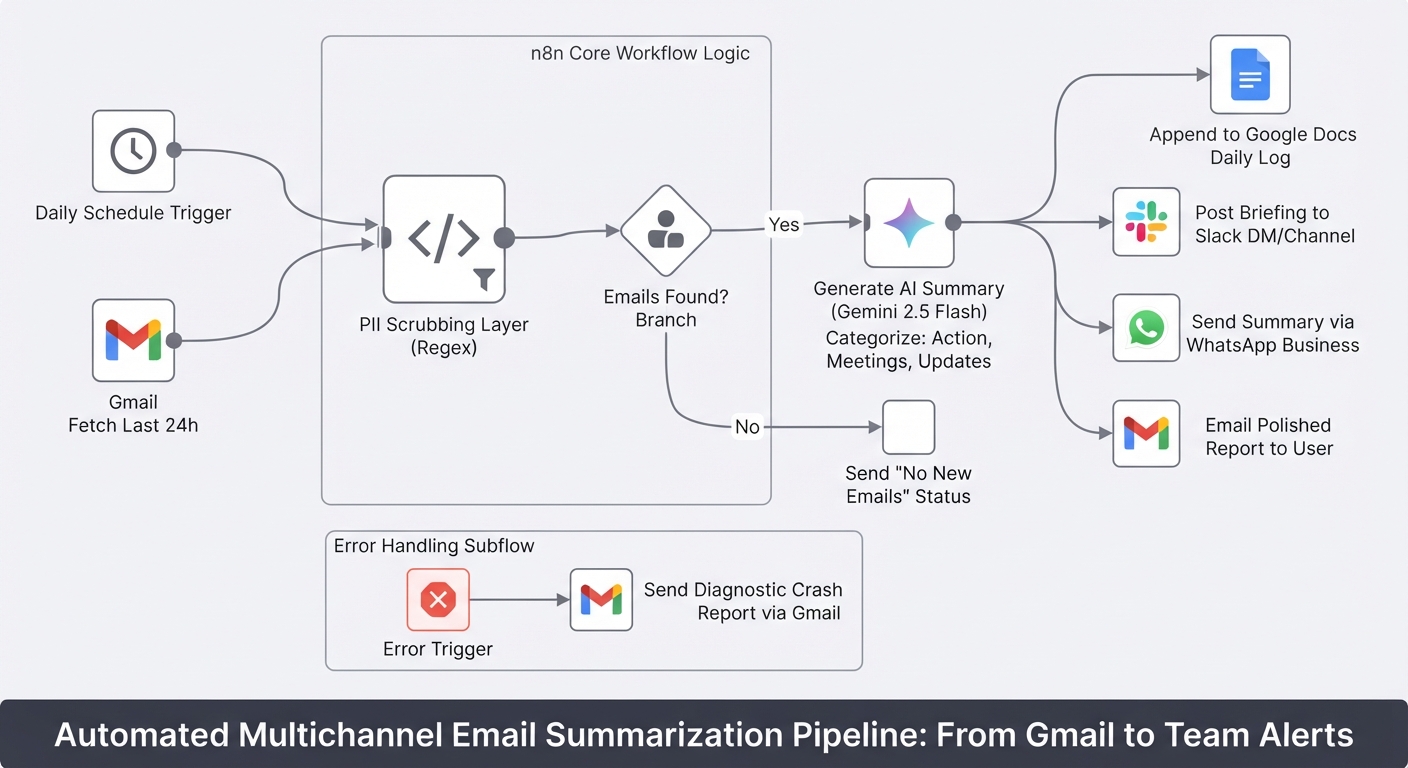
Summarize daily Gmail emails with Gemini and send to Slack, WhatsApp and Docs
Stop starting your day by drowning in unread emails. This workflow turns your Gmail inbox into a prioritized briefing delivered to Slack, WhatsApp, and Google Docs.

Score Shopify Customer Churn Risk and Sync Results to Klaviyo, Slack, and Gmail
Calculate Shopify customer churn risk dynamically based on reorder intervals. Automatically sync risk scores to Klaviyo and send alerts to Slack and Gmail with this free n8n workflow.

Send Payment Reminders and Cancel Unpaid Shopify Orders via Gmail
Automate unpaid Shopify order recovery. Send staged payment reminders via Gmail, automatically cancel expired orders, restock inventory, and receive daily CSV admin audit reports with n8n.
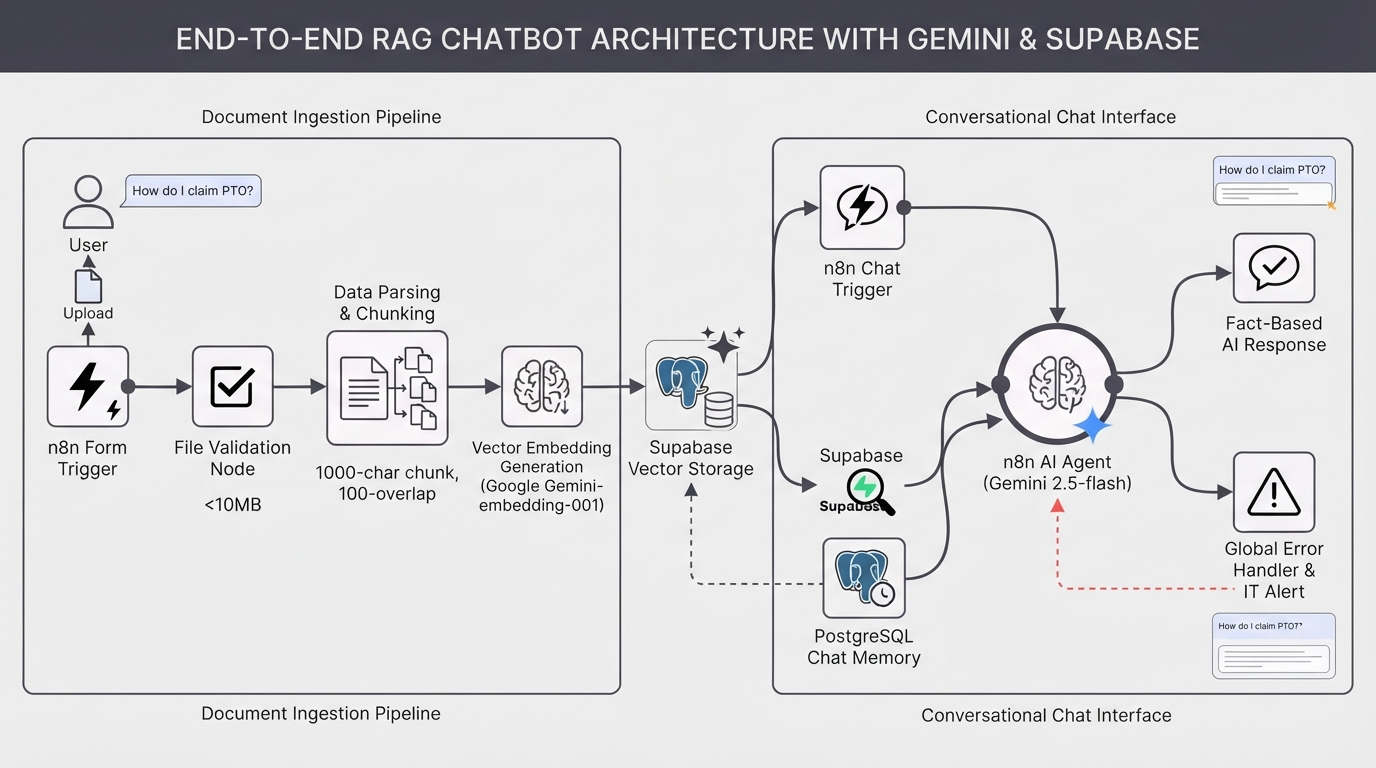
Build a RAG chatbot using Google Gemini and a Supabase vector store
Build a custom AI knowledge base in minutes. This complete RAG system uses Google Gemini and Supabase to ingest documents and provide accurate, context-aware chatbot answers.