
Auto-reply to Instagram comments with Gemini and Google Sheets tracking
Automate your Instagram community management authentically. This n8n workflow monitors your posts, uses Gemini AI to generate context-aware replies, and logs interactions in Google Sheets.
Download the n8n Workflow
Import the complete Instagram auto-reply workflow utilizing Gemini AI for context-aware responses and Google Sheets for analytics tracking.
Why Manual Instagram Community Management Doesn't Scale
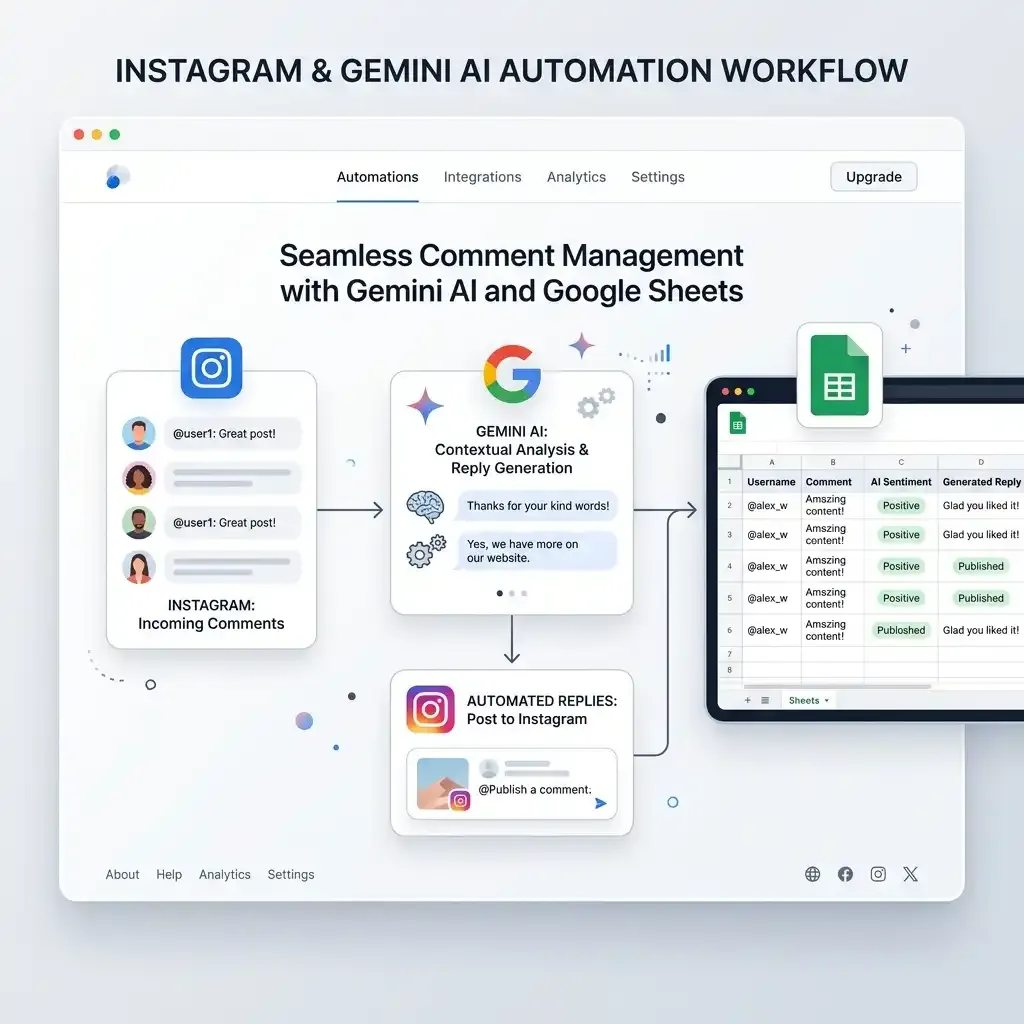
Engaging with your audience is essential for the growth of any social media brand, but manually replying to every Instagram comment is virtually impossible when a post goes viral. Social media managers and creators often struggle to keep up with the sheer volume of engagement, resulting in missed connections and diminished brand loyalty.
Common Instagram community management challenges include:
- Spending hours manually typing repetitive replies to followers
- Sending generic bot responses that damage brand authenticity
- Losing track of which comments have already been answered during high-traffic campaigns
- Inability to maintain a clean, centralized audit trail for engagement analytics
- Hitting Instagram API rate limits when attempting to automate responses poorly
Instead of struggling to keep up with viral growth, you can automate intelligent, context-aware Instagram replies using n8n and Gemini AI.
How This Workflow Solves the Problem
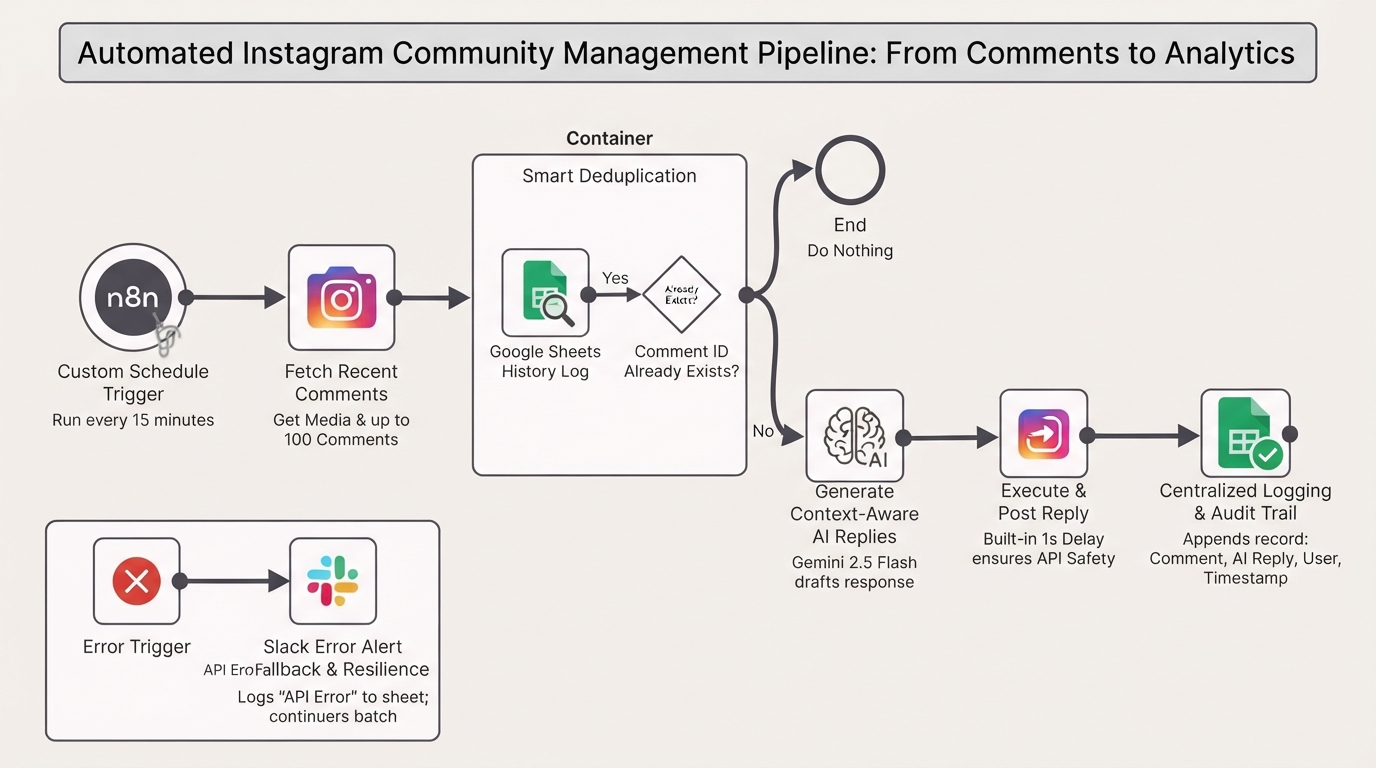
This powerful automation monitors your chosen Instagram post and employs Gemini 2.5 Flash AI to generate highly personalized, context-aware replies to new comments. It behaves just like a human community manager—understanding the nuance of the comment and your brand’s tone. Crucially, it utilizes Google Sheets as a lightweight database to ensure you never reply to the same comment twice, while simultaneously creating a centralized audit trail of your interactions.
How the Automated Workflow Works
Step 1 — Custom Schedule Trigger
The workflow runs automatically on a customizable schedule (e.g., every 15 minutes) or can be triggered manually, polling the Facebook Graph API for recent comments on your media.
Step 2 — Fetch Recent Comments
Pulls your recent Instagram media and up to 100 recent comments. It perfectly mimics human monitoring without overwhelming your resources.
Step 3 — Smart Deduplication via Google Sheets
Compares live comment IDs against your Google Sheets history log. This instantly isolates strictly new comments, guaranteeing that users don't receive duplicate replies.
Step 4 — Generate Context-Aware AI Replies
For each new comment, Gemini 2.5 Flash analyzes both your original post's caption and the user's specific comment. It drafts a unique, brand-aligned response based on your exact guidelines.
Step 5 — Execute & Post Reply
The workflow posts the tailored AI response back to Instagram, utilizing built-in delay nodes (waiting 1 second between actions) to ensure API safety and prevent rate-limiting bans.
Step 6 — Centralized Logging & Audit Trail
Appends the complete interaction record—including the comment, AI reply, usernames, and timestamps—to your Google Sheet for easy review and future analytics.
Step 7 — API Error Fallback & Resilience
If the Instagram API hiccups or Gemini returns malformed output, the workflow gracefully catches the error. It logs an "API Error" status to your sheet and continues processing the remaining batch without crashing.
Need Help Implementing This Workflow?
Our automation experts can customize this Instagram AI auto-reply workflow specifically for your social media strategy, ensuring your brand voice remains authentic and your engagement soars.
We can help with:
- ✅ n8n Workflow Development
- ✅ Meta/Facebook Graph API Integration
- ✅ Advanced Gemini AI Prompt Engineering
- ✅ Google Sheets Database Automation
- ✅ Social Media Community Management Automation
- ✅ Custom Multi-Post Monitoring Configurations
- ✅ Ongoing Workflow Support & Optimization
Explore Our n8n Automation Services →
Step-by-Step Setup Guide
Step 1 — Authenticate Credentials
Connect your Facebook Graph API credentials and Google Sheets credentials. For the Gemini node, create a new "Google Gemini(PaLM) Api account" credential and securely paste your Google AI Studio key.
Step 2 — Set Up the Google Sheets Database
Create a blank Google Sheet (named "Sheet1") and add these exact headers to Row 1: comment_id, username, comment, reply_id, reply, comments_timestamp, post_url, reply_timestamps.
Step 3 — Update the Configuration Node
Open the "Configure Post & Message" node and fill in your Target Instagram post URL, Instagram Business Account ID, Brand Name & Tone, and the URL for your Google Sheet.
Step 4 — Test the Logic
Click "Test Workflow". The template is pre-loaded with pinned sample data, allowing you to safely inspect the logic, AI generation, and data mapping loops before going live with your account.
Step 5 — Activate the Workflow
Assign a global Error Workflow (recommended) in your settings to track credential expirations, then toggle the workflow to Active. It will immediately begin polling and replying to comments every 15 minutes.
System Requirements & Features
Workflow Features
- Context-Aware Gemini AI Replies
- Smart Google Sheets Deduplication
- Built-in Rate-Limit Protection
- Resilient Error Handling & Fallbacks
- Centralized Analytics & Audit Trail
Requirements
| Tool | Requirements |
|---|---|
| Business Account connected to a Facebook Page | |
| Facebook Graph API | Scopes: instagram_manage_comments, pages_show_list, instagram_basic |
| Google Sheets | OAuth2 Credentials (read/write access) |
| Gemini AI | Google Gemini API Key (PaLM API credential type) |
| n8n | Version 2.11.3+ |
Customization Options
- Monitor Multiple Posts: Update the ingestion Code node to target an array of Instagram post URLs instead of a single post URL for broader campaign tracking.
- Change the Frequency: Modify the Schedule Trigger to run hourly, daily, or dynamically depending on your specific traffic volume and API limits.
- Advanced AI Sentiment Routing: Enhance the Gemini system prompt to detect negative sentiment and flag those sensitive comments directly into a Slack channel for manual review rather than auto-replying.
Real-World Use Cases
- Content Creators & Influencers: Automatically engage with fans on viral reels without sacrificing authenticity or dedicating hours to your inbox.
- E-commerce Brands: Rapidly respond to product inquiries and sizing questions in the comments section during major product launches.
- Social Media Agencies: Manage multiple client accounts efficiently, ensuring high engagement rates and providing clients with detailed interaction reports via Google Sheets.
- Marketing Campaigns: Automatically reply to giveaway entry comments to confirm participation while seamlessly tracking entrants in a centralized spreadsheet.
Best Practices
- Craft a highly specific "Brand Tone" prompt in the configuration node to ensure the AI sounds exactly like your brand's unique voice.
- Do not rename the default Google Sheet tab from "Sheet1" unless you also update the "sheetName" field in both Google Sheets nodes.
- Periodically review your Google Sheets audit log to monitor the quality of the AI responses and refine your prompt if necessary.
- Ensure your Facebook Graph API tokens are refreshed properly to avoid sudden workflow interruptions.
Conclusion
Scaling your Instagram engagement shouldn't require compromising on authentic community management. This n8n workflow leverages the power of Gemini AI to craft personalized replies, utilizes Google Sheets for foolproof deduplication, and safeguards your accounts with built-in API protection.
Ready to supercharge your Instagram engagement? 👉 Download the Free n8n Workflow Template Today
Related Posts

Send Payment Reminders and Cancel Unpaid Shopify Orders via Gmail
Automate unpaid Shopify order recovery. Send staged payment reminders via Gmail, automatically cancel expired orders, restock inventory, and receive daily CSV admin audit reports with n8n.
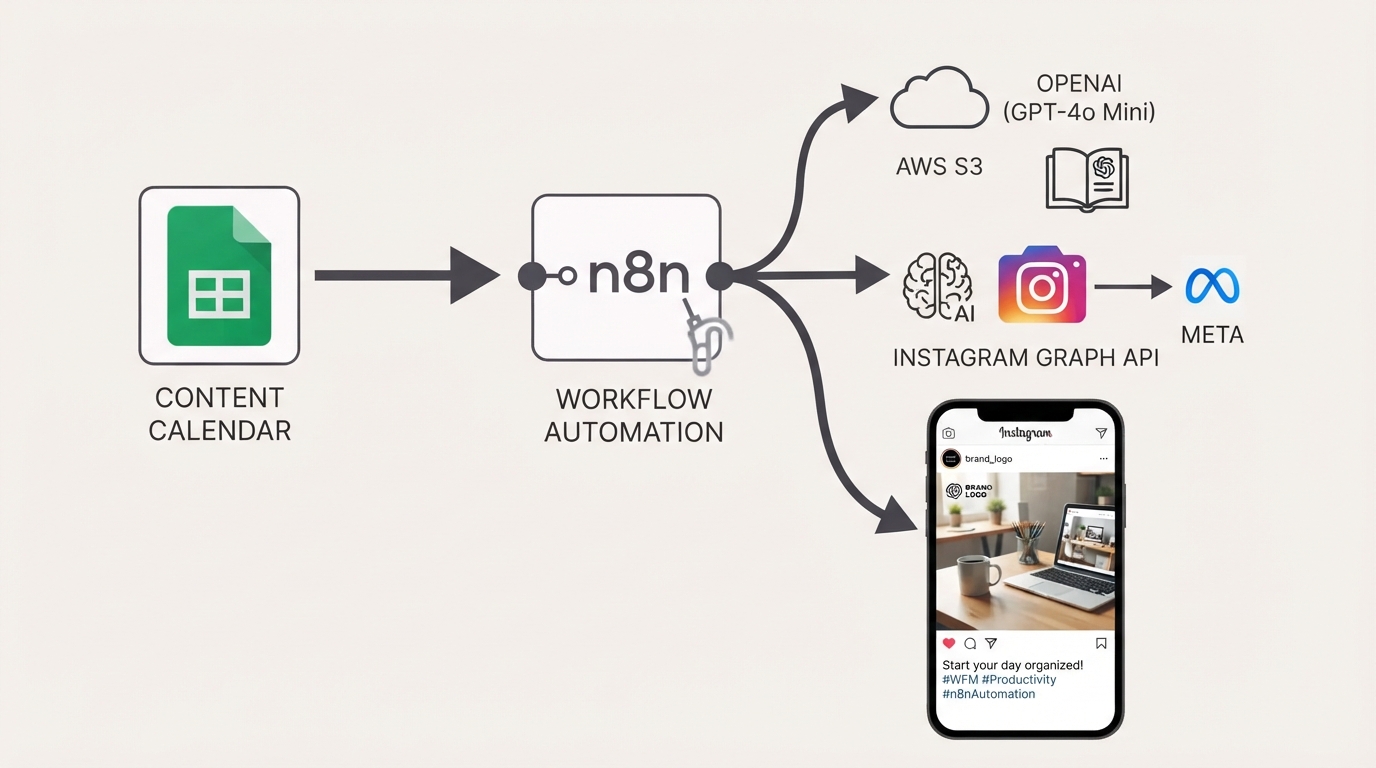
Publish Brand-Compliant Instagram Posts with OpenAI, Google Sheets, and S3
Automatically generate on-brand Instagram captions and images with OpenAI, watermark them with your logo, publish via the Facebook Graph API, and track results in Google Sheets using this free n8n workflow.
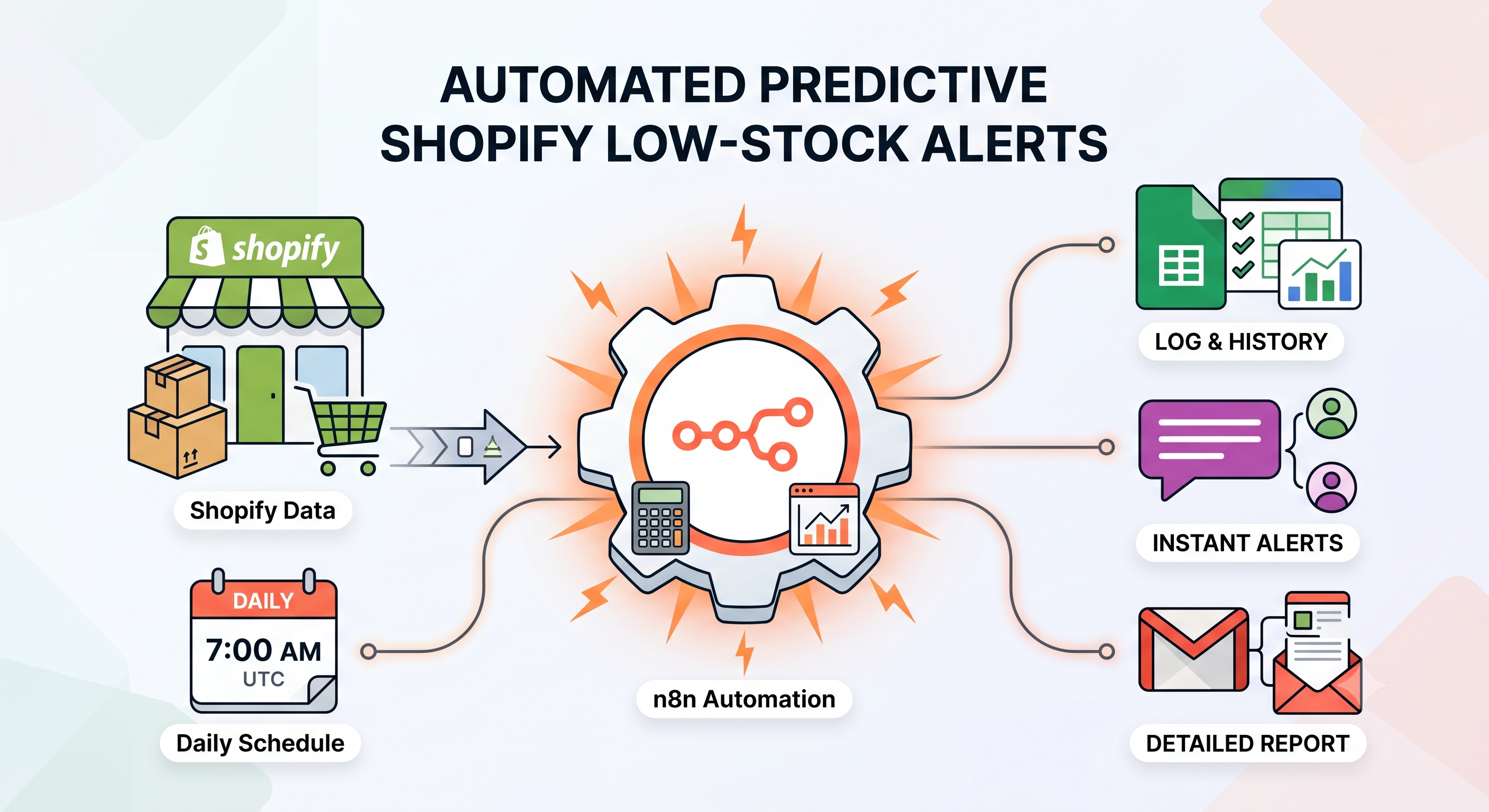
Send Predictive Shopify Low-Stock Alerts with Google Sheets, Slack, and Gmail
Automatically predict Shopify stockouts using sales velocity, send low-stock alerts via Slack and Gmail, and prevent duplicate notifications with Google Sheets using this free n8n workflow.
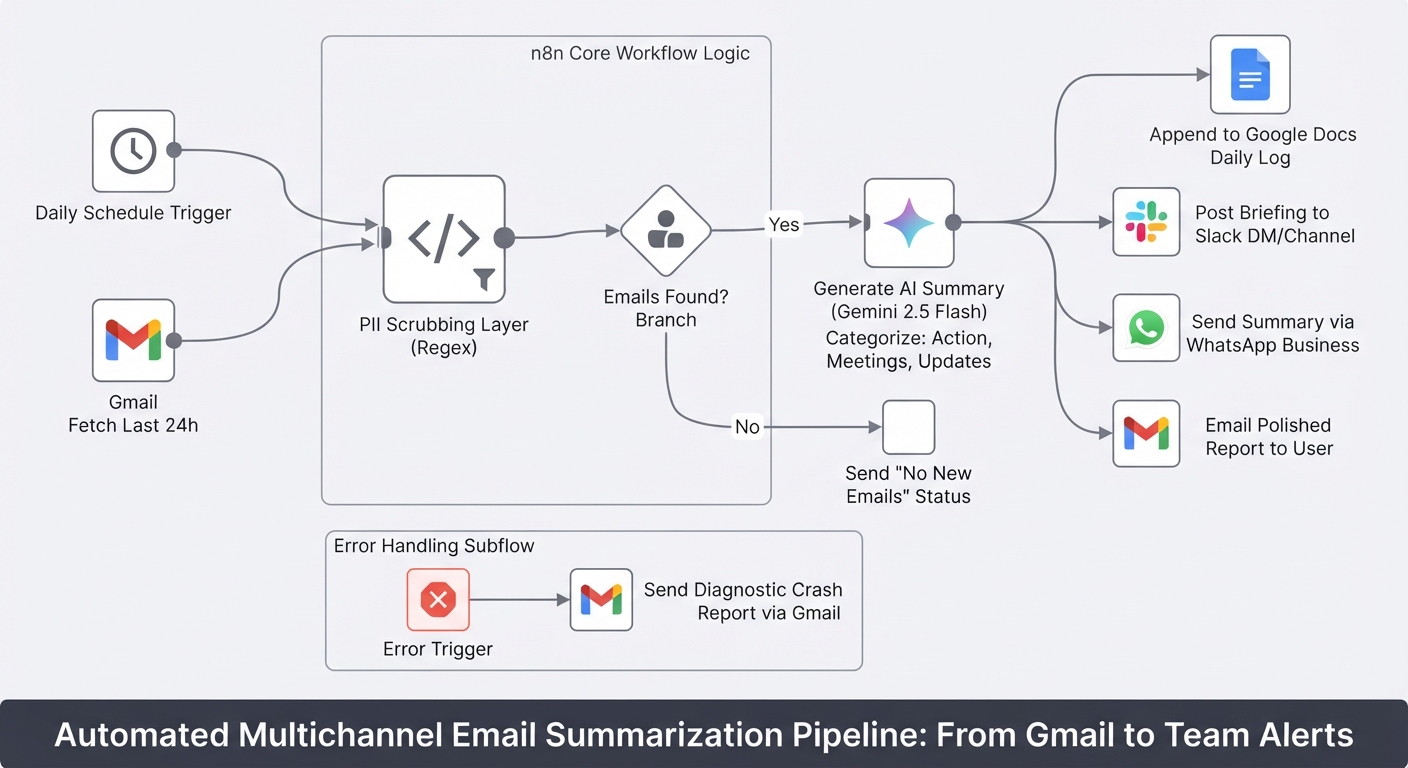
Summarize daily Gmail emails with Gemini and send to Slack, WhatsApp and Docs
Stop starting your day by drowning in unread emails. This workflow turns your Gmail inbox into a prioritized briefing delivered to Slack, WhatsApp, and Google Docs.