
Wordpress Security
Security for WordPress websites is one of the most important topics for website owners.
WordPress Security
Security for WordPress websites is one of the most important topics for website owners.
The WordPress security best practices should be considered if you are serious about your website. Using this guide, you can protect your WordPress website against hackers and malware.
There are a lot of things you can do to keep your WordPress site safe, despite the fact that the core software is very secure, and it is audited regularly by hundreds of developers.
We believe that security isn't just about eliminating risks. Risk reduction is also a part of it. There are many things you can do as a website owner to improve your WordPress security (even if you're not tech savvy).
To protect your website from security vulnerabilities, you can take several actionable steps.
1. Implement SSL Certificates
Online transactions with customers are protected by SSL, an industry standard.
Secure your website by obtaining one as soon as possible. SSL certificates can be purchased, but most hosting providers provide them for free.
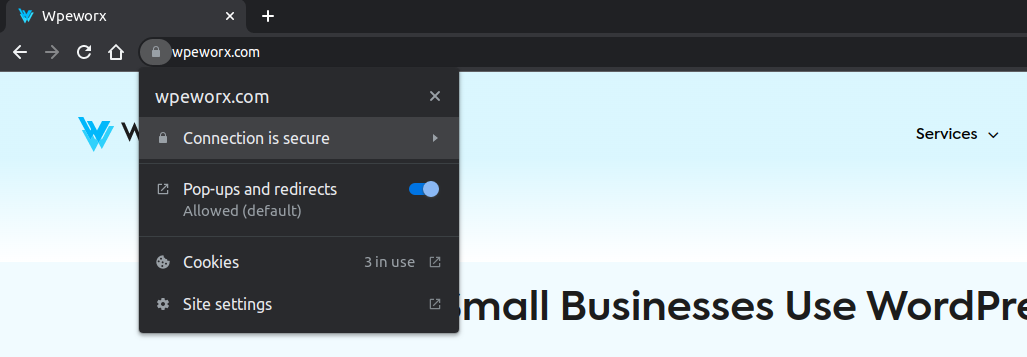
Use a plugin to force HTTPS redirection, which activates the encrypted connection.
An encrypted connection is established between a web server (host) and a web browser (client).
You can ensure privacy and intrinsic security by adding an encrypted connection between the two.
2. Require & Use Strong Passwords
Stolen passwords are the most common method of hacking WordPress. Use stronger, unique passwords for your website to make it more difficult. This includes FTP accounts, databases, WordPress hosting accounts, and custom email addresses using your domain name for the WordPress admin area.
Using a familiar or easy-to-remember password might be tempting, but doing so puts you, your users, and your website at risk.
You are less likely to be hacked if you increase the strength and security of your passwords.
Cyberattacks are less likely to occur if your password is strong.
It is also a good idea not to give anyone access to your WordPress admin account unless it is absolutely necessary. Make sure you understand user roles and capabilities in WordPress before adding new user accounts and authors to your WordPress site if you have a large team or guest authors.
3. Install A Security Plugin
WordPress plugins are a great way to quickly add useful features to your website, and there are several great security plugins available.
Your website can be protected using a security plugin easily.
Check out these recommended WordPress security plugins to get you started:
- Wordfence Security – Firewall & Malware Scan
- All In One WP Security & Firewall
- iThemes Security
- Jetpack – WP Security, Backup, Speed, & Growth
4. Keep WordPress Core Files Updated
Your WordPress site must be kept up-to-date at all times to maintain security and stability.
An update to fix a WordPress security vulnerability is released every time it is reported.
You are likely using a version of WordPress that has known vulnerabilities if you do not update your website.
5. Pay Attention To Themes & Plugins
Keeping WordPress updated ensures your core files are protected, but themes and plugins may not be protected by core updates.
Plugins and themes should only be installed from trusted developers. Avoid plugins and themes that weren't developed by credible sources.
Additionally, update your WordPress plugins and themes regularly. The use of outdated plugins and themes is just as dangerous as using an outdated version of WordPress.
Delete Unused Plugins & Themes
WordPress plugins should be of high quality rather than quantity. Too many plugins running at the same time can negatively affect the loading time of your website. A plugin may be doing unnecessary work in the background even if you aren't actively using it.
Deactivate any plugins you are certain you won't use again. Once all plugins have been deactivated, test your site, then delete them once everything has been verified to work. Deactivating each plugin one by one can help you identify which one impacts site speed — lightweight alternatives may exist.
Install High-Quality Plugins Only
Now that you've removed unneeded plugins, make sure you keep high-quality ones. Effective WordPress plugins should only consume server resources when needed, are light on code, won't take up much space on your server, and are regularly updated to keep up with WordPress core changes.
Check recommendation lists for performance-friendly plugins, as they usually account for how well they are built and maintained. Review ratings and feedback before installing a new plugin, and re-run performance tests after installation to ensure speed hasn't been significantly impacted.
6. Run Frequent Backups
Maintaining a current backup of your WordPress website and important files is one way to protect it.
It is the last thing you want if something happens to your site without a backup.
In that way, you can quickly restore a previous version of your website if something goes wrong.
7. Never Use The "Admin" Username
The username "admin" is so common that it is easily guessed, and scammers can use it to steal login credentials.
Don't use the "admin" username. Doing so makes you more likely to be targeted by brute force attacks and social engineering scams.
As with strong passwords, using a unique username for your logins prevents hackers from cracking your login information.
8. Hide Your WP-Admin Login Page
Adding /wp-admin or /wp-login.php to a URL will get you to most WordPress login pages.
This makes it easy for hackers to find your login page and attempt to guess your username and password to gain access to your Admin Dashboard.
Hide your WordPress login page to make yourself less vulnerable. You can do this with a plugin like WPS Hide Login.
9. Disable XML-RPC
WordPress implements the XML-RPC protocol for extending functionality to software clients. It allows commands to be executed with XML-formatted data returned.
WordPress XML-RPC functionality isn't necessary for most users, and it's a common vulnerability that can be exploited.
This is why it's a good idea to disable it. That's easy to do with Wordfence Security.
10. Harden wp-config.php File
Your WordPress wp-config.php file contains sensitive information including your WordPress security keys and database connection details — you don't want it to be easily accessible.
A .htaccess file can help "harden" your wp-config.php file, making your site more secure against hackers.
11. Choose A Secure Hosting Company
Choosing a hosting company is all about finding one that is fast, reliable, secure, and will support you well.
Ideally, they should have good, powerful resources, maintain an uptime of at least 99.5%, and use server-level security measures.
You shouldn't waste your time or money on a host that can't check those basic boxes. To protect your WordPress website from the very beginning, choose the right hosting company.
12. Use The Latest PHP Version
Outdated versions of PHP are no longer safe to use. Upgrade your PHP version if you aren't using the latest version.
Anyone running PHP 7.1 or below does not have security support and is vulnerable to unpatched security vulnerabilities.
Source: https://www.php.net/supported-versions.php
13. Host On A Fully-Isolated Server
There are many advantages to using private cloud servers, including improved security.
Private clouds run on specific physical machines, making their physical security easier to ensure than public clouds.
Besides security, fully-isolated servers also have very high uptime and are easy to integrate with managed hosting services.
14. Use A Web Application Firewall
Your WordPress website can be made more secure by using a web application firewall (WAF).
WAFs are typically cloud-based security systems that offer another layer of protection. Consider it a gateway for your website — it blocks hacking attempts and filters out other malicious traffic such as spam and distributed denial-of-service attacks.
If you place a high value on your WordPress website's security, adding a WAF is worth the cost.
We offer secure WordPress hosting with free SSL, dedicated IP addresses, free backups, automatic WordPress updates, DDoS protection, and WAF.
15. Disable File Editing
From your WordPress admin area, you can edit theme and plugin files using the built-in code editor. This feature may pose a security risk in the wrong hands, so we recommend turning it off.
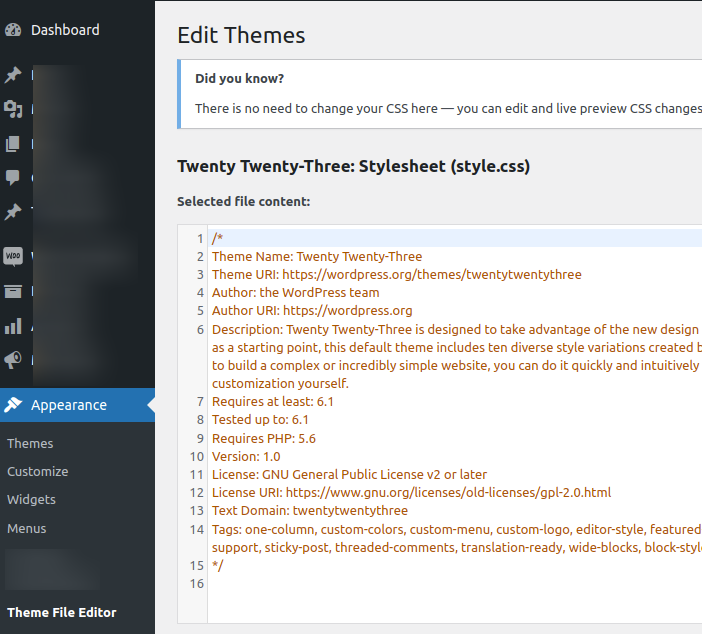
Add the following code to your wp-config.php file:
// Disallow file edit
define( 'DISALLOW_FILE_EDIT', true );
16. Disable PHP File Execution in Certain WordPress Directories
You can harden your WordPress security by disabling PHP file execution in directories where it is not needed, such as /wp-content/uploads.
Paste the following code into a text editor and save it as .htaccess, then upload it to your /wp-content/uploads/ folder via FTP:
<Files *.php>
deny from all
</Files>
17. Limit Login Attempts
By default, WordPress allows users to attempt logging in multiple times, making your site vulnerable to brute force attacks where hackers try different password combinations.
You can easily fix this by limiting the number of failed login attempts a user can make. Web application firewalls handle this automatically if you use them.
Plugins that provide login attempt limiting:
- Limit Login Attempts Reloaded
- Login LockDown – Protect Login Form
- Wordfence Security – Firewall & Malware Scan
18. Change WordPress Database Prefix
WordPress uses wp_ as the prefix for all tables in your database by default. This makes it easier for hackers to guess your table names. We recommend changing it to something custom.
Note: If you don't do this correctly, your site might break. Only proceed if you feel comfortable with your coding skills.
19. Disable Directory Indexing and Browsing
Hackers can use directory browsing to find out if your files have known vulnerabilities so they can exploit them. Others can also use it to look at your files, copy images, and find out your directory structure.
Connect to your website via FTP or cPanel's file manager and locate the .htaccess file in the root directory. Add the following line at the end of the file:
Options -IndexesSave and re-upload the .htaccess file to your site.
20. Automatically Log Out Idle Users
Logged-in users who wander away from their screens pose a security risk — someone could hijack their session, change their password, or make changes to their account.
Many banking and financial sites automatically log out inactive users. You can implement the same on your WordPress site.
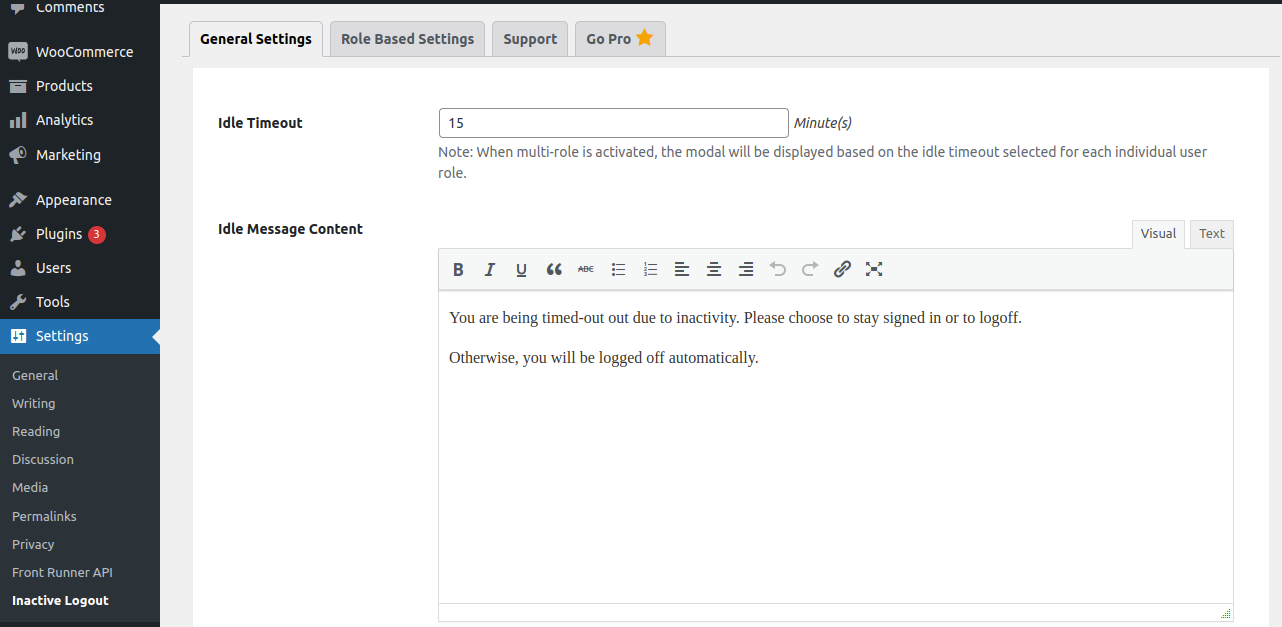
Install and activate the Inactive Logout plugin. After activation, visit Settings » Inactive Logout to configure the timeout duration and logout message, then save your settings.
21. Hide Your WordPress Version

Hiding your WordPress version helps keep your site configuration secret. An outdated WordPress version displayed in your source code can attract intruders. We recommend always keeping your WordPress installation up-to-date.
To remove the version from your source, add the following code to your theme's functions.php file:
function fn_remove_wp_version() {
    return '';
}
add_filter( 'the_generator', 'fn_remove_wp_version' );
Every WordPress version includes a readme.html file that displays the WordPress version, accessible at yourdomain.com/readme.html. You can safely delete this file via FTP.
Note: The version number is no longer included in this file if you're running WordPress 5.0 or higher.
22. Harden Database Security
There are a couple of ways to improve the security of your WordPress database. First, use a clever database name — for example, if your site is called "volleyball tricks," avoid using the default name wp_volleyballtricks. Changing your database name to something more obscure makes it harder for hackers to identify and access it.
Second, use a different database table prefix. WordPress uses wp_ by default — change this to something like 39xw_ to make it more secure. The table prefix can be set during WordPress installation, or changed on an existing installation.
23. DDoS Protection
A DDoS (Distributed Denial of Service) attack targets a single system using multiple computers to cause a Denial of Service (DoS). According to Britannica, the first documented DDoS attack occurred in early 2000. These attacks typically don't harm your site's data but can take it offline for hours or days.
An excellent recommendation is to use a third-party security service such as Cloudflare or Sucuri. Investing in their premium plans can make sense if you run a business.
Related Posts
WordPress Multisite
WordPress Multisite: What It Is, How to Activate and Manage It
WordPress Malware Removal
WordPress Malware Removal
Wordpress SEO
Search engines are the biggest source of traffic for most websites.

How to Create a High-Converting Shopify Landing Page
Creating a high-converting Shopify landing page requires more than design—it requires strategy, psychology, and optimization.